
Test Editor: Exercises and Tests
Learn how to create and manage French exercises using Test Editor.
In this tutorial, we will describe step by step the features available in the exercises and tests module.
When opening it for the first time, an empty window appears with the following message in the center: “No saved tests.”. We will start by creating a new questionnaire.
Creating a Questionnaire (Test)
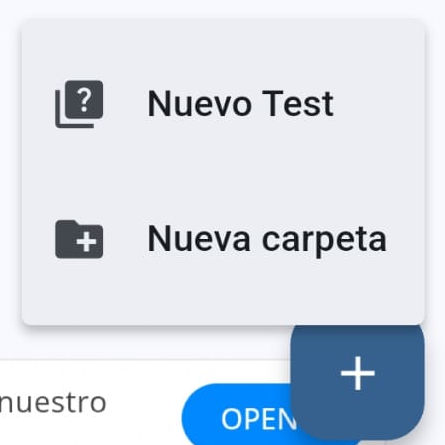
To create a new test, tap the button with the "+" sign located at the bottom right. A menu expands and you must tap "New Test".
Note: In the image, the ”+” button appears overlaid on the app’s advertising banner. This advertising can be removed in the Android version via an in-app purchase.
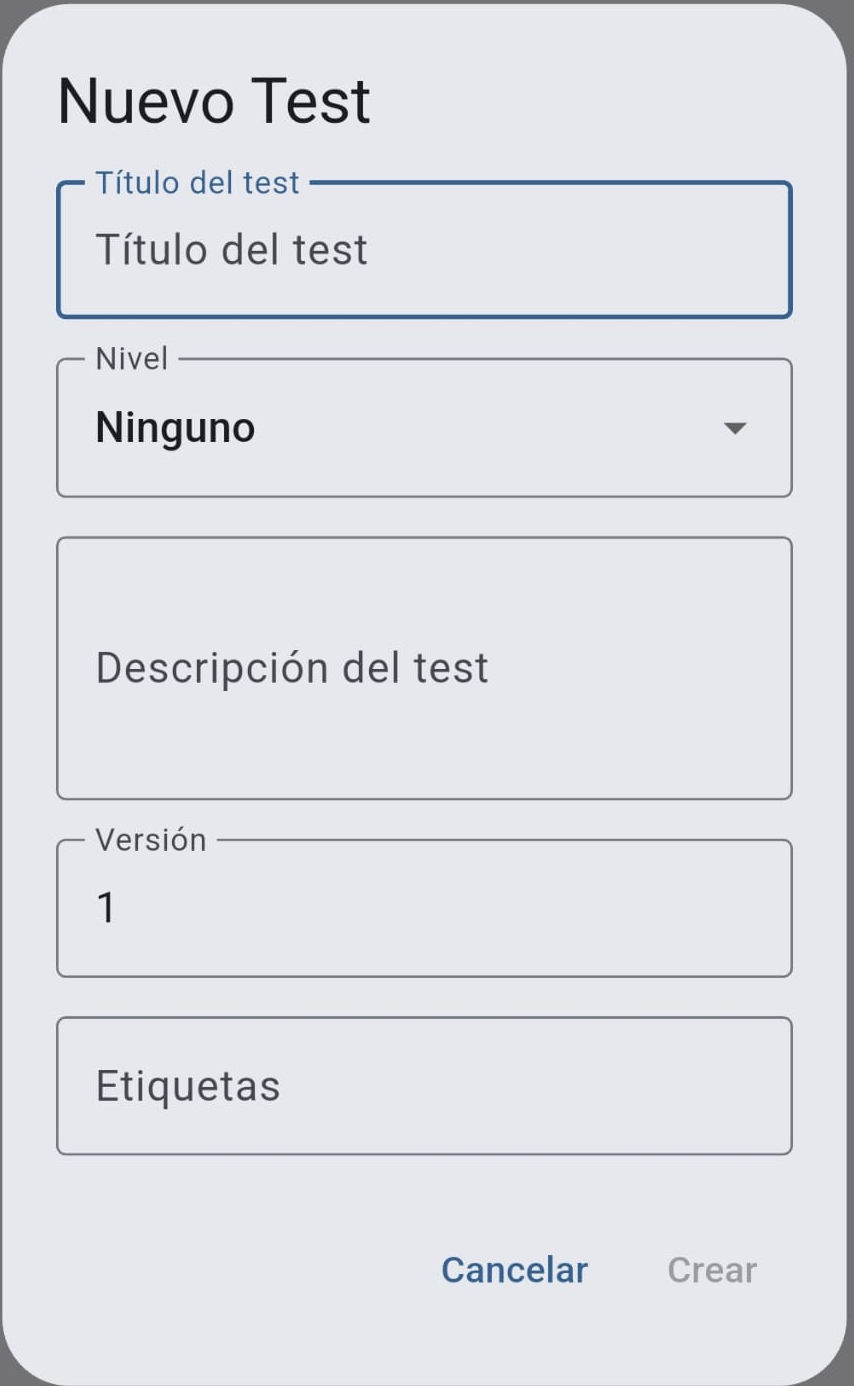
A form appears asking for the "Test Title". This is a mandatory field, and once filled in, the "Create" button at the bottom right becomes enabled. The remaining fields can be completed later:
Level: according to the Common European Framework of Reference for Languages (CEFR)
Description: Questionnaire description. Markdown formatting can be used (click here to learn more about markdown)
Version: to keep track of versioning if desired
Tags: to assign attributes to the questionnaire (for example, "écoute")
Next, a form appears to create the first question.
In the guide for configuring questionnaire questions, each question type is explained in detail.
Once the questionnaire has been saved and you return to the exercise module screen, you can see the questionnaire you just saved listed.
The Questionnaires Screen
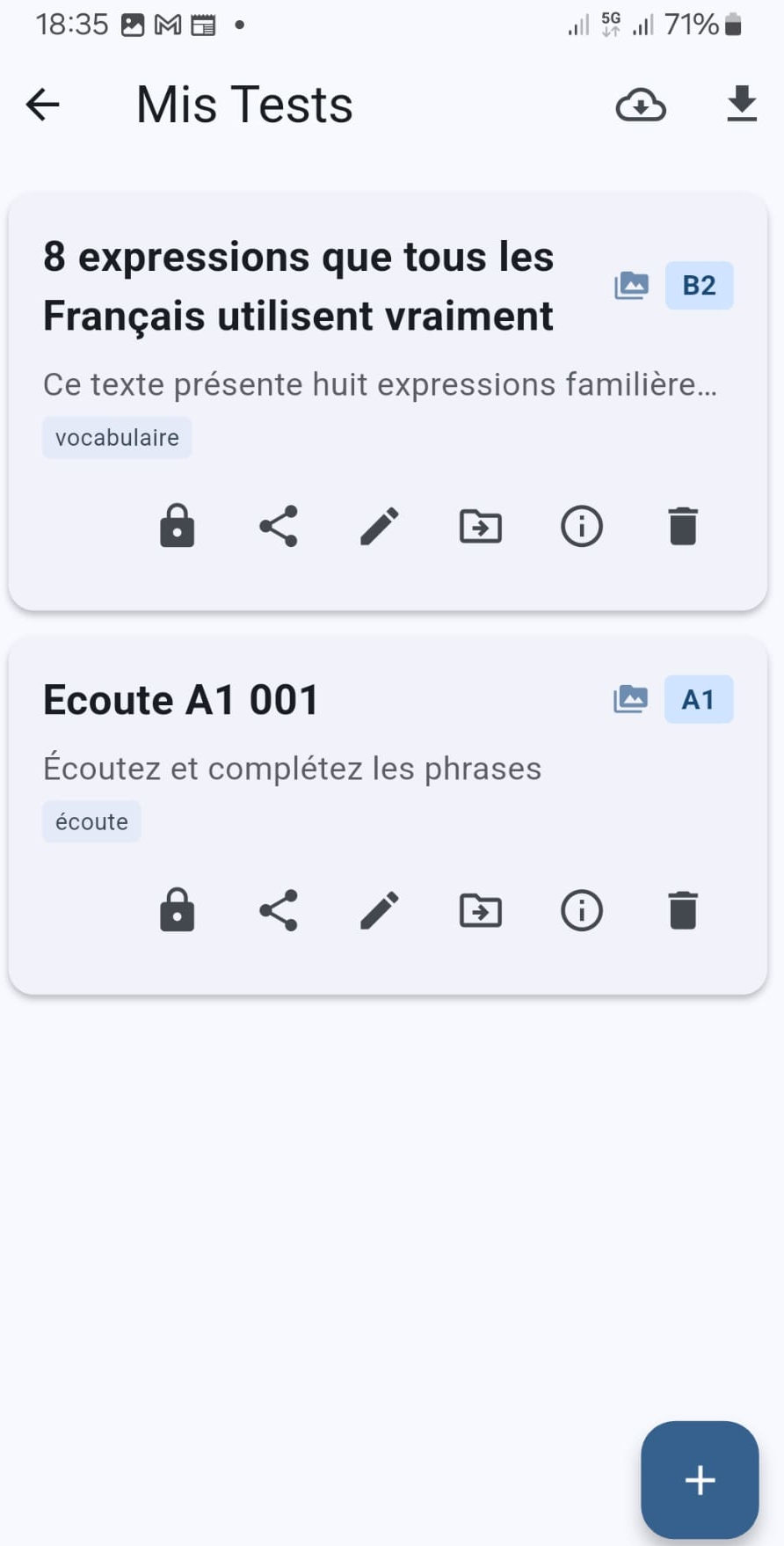
For each questionnaire, the following is displayed:
The title and, to its right, attributes such as the CEFR level or whether it includes multimedia elements.
The first line of the description.
Tags.
A button bar (explained in depth in the next section).
At the bottom right, you can see the button to create a new questionnaire or a folder.
 Let’s describe what each button does from left to right:
- 🔒 : if the padlock is locked, the file is protected and can only be edited by someone with the password. It can be unlocked by tapping the padlock (the padlock will show open). This protection system is designed to protect our users’ intellectual property.
- 🔀 : the file can be shared (for example, sent by email) or saved to a folder on the user’s device.
- ✏️ : edit the questionnaire.
- ➡️ : moves the file to a folder. The folder system is identical to that of Test Viewer (folder system description).
- ℹ️ : allows editing the general information of the questionnaire (title, description, etc.).
- 🗑️ : deletes the questionnaire. The app asks for confirmation before deleting.
Importing Questionnaires
 There are several ways to import a questionnaire into the editor:
- The left button (the cloud) allows downloading tests from the official LekuSoft site or from other data sources registered in the application.
- The right button (downward arrow) allows importing a file stored in a folder on the device.
- Drag & drop.
Downloading a Questionnaire
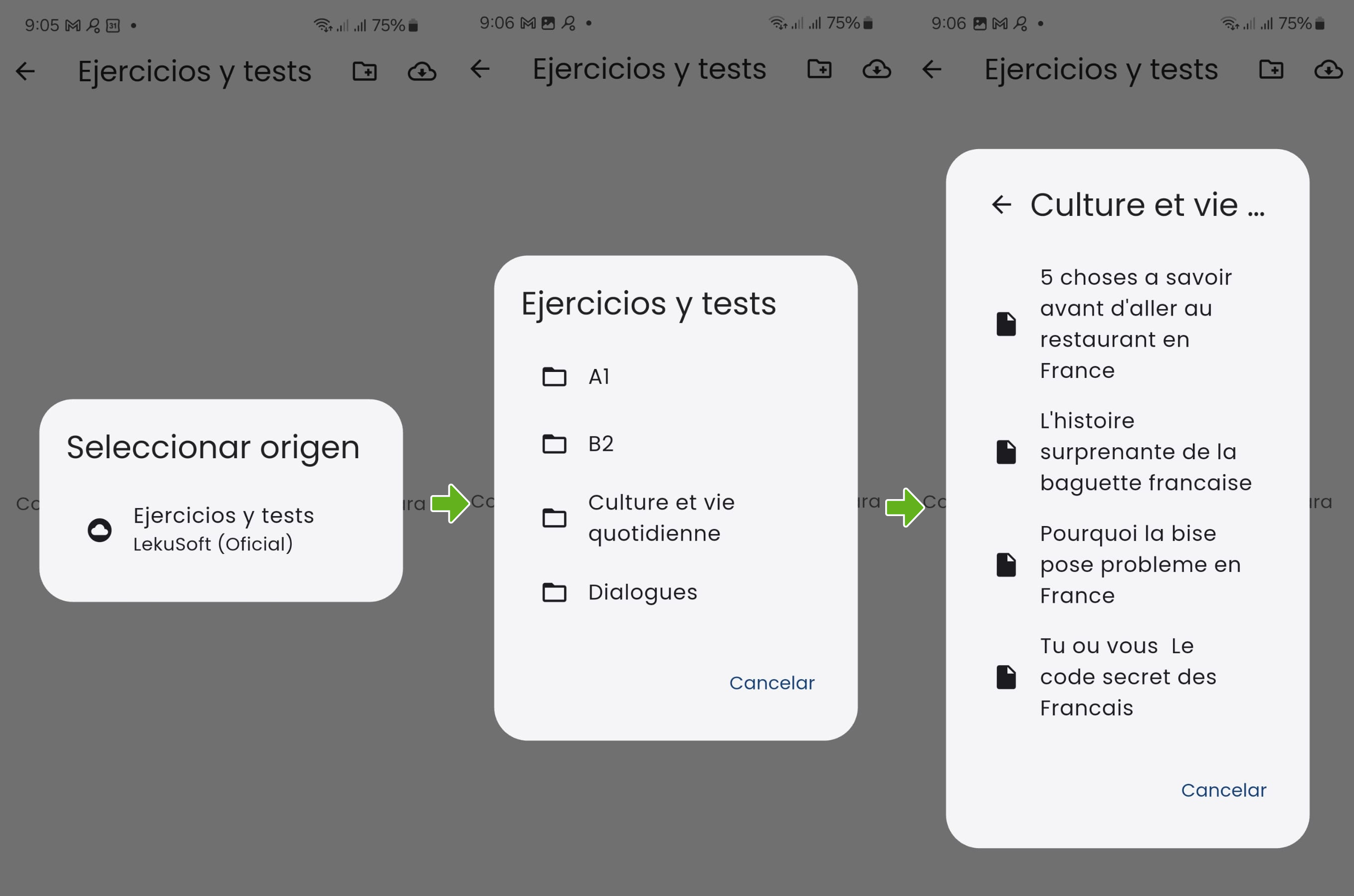 If no new exercise repositories have been added, only the official Lekusoft repository will appear. You can browse the folder structure until you find the file you want to download. Tapping it initiates the download, which may take a few seconds depending on the file size. Afterwards, a few more seconds are required for the application to process and store the questionnaire in the database.