
Test Editor: Exercise Types
Learn how to configure the different types of exercises available in Test Editor.
In this tutorial, we will review each question type, focusing on how to set them up. The screenshots in this document from this point forward are taken from a tablet, as the larger screen allows forms to be seen more clearly, although everything works seamlessly on mobile phones as well.
The first field is “Question Type”. There are 7 question types: Fill in the Blanks, Ordering, Multiple Choice, Multiple Answer, Question (Free Text), Information, and Matching Columns. Before describing the form for each question type, we will explain the common elements.
Common Elements
Multimedia
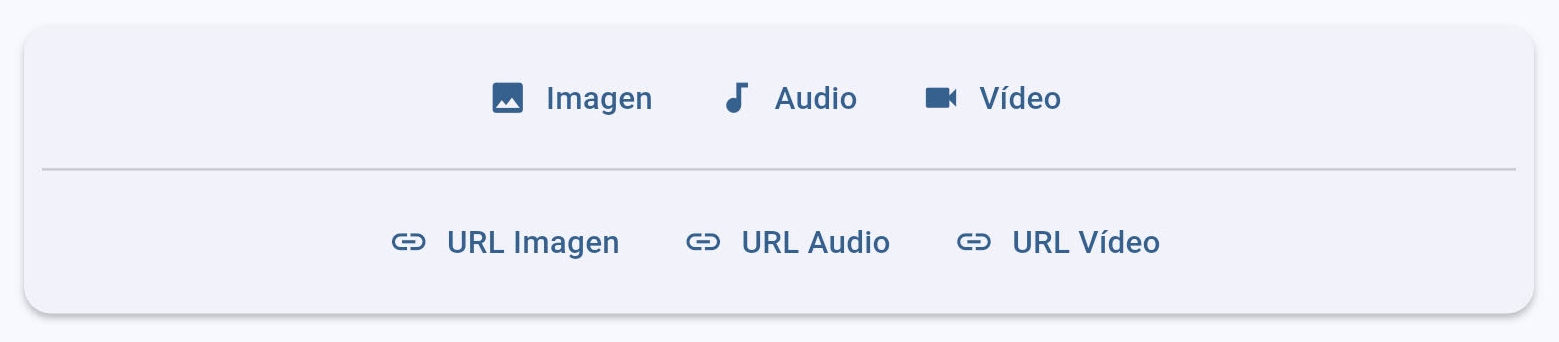 Any question can have an associated multimedia file: images, audios, or videos. These can be links to files hosted on the Internet (e.g. YouTube videos) or files stored locally on your device.
Navigation Bar
 The navigation bar serves three functions:
- Information: the center shows the current question number and the total number of questions in the questionnaire.
- Navigation between questions: four arrows are available:
|<: Goes to the start.←: Moves one question back.→: Moves one question forward.>|: Goes to the end.
- Actions:
- The three-line menu icon opens a list view that allows reordering questions in a questionnaire.
- The plus icon ”⊕” allows adding a new question before or after the current question.
- Tapping the number inside the box opens a selector dialog to jump directly to a specific question, as detailed below.
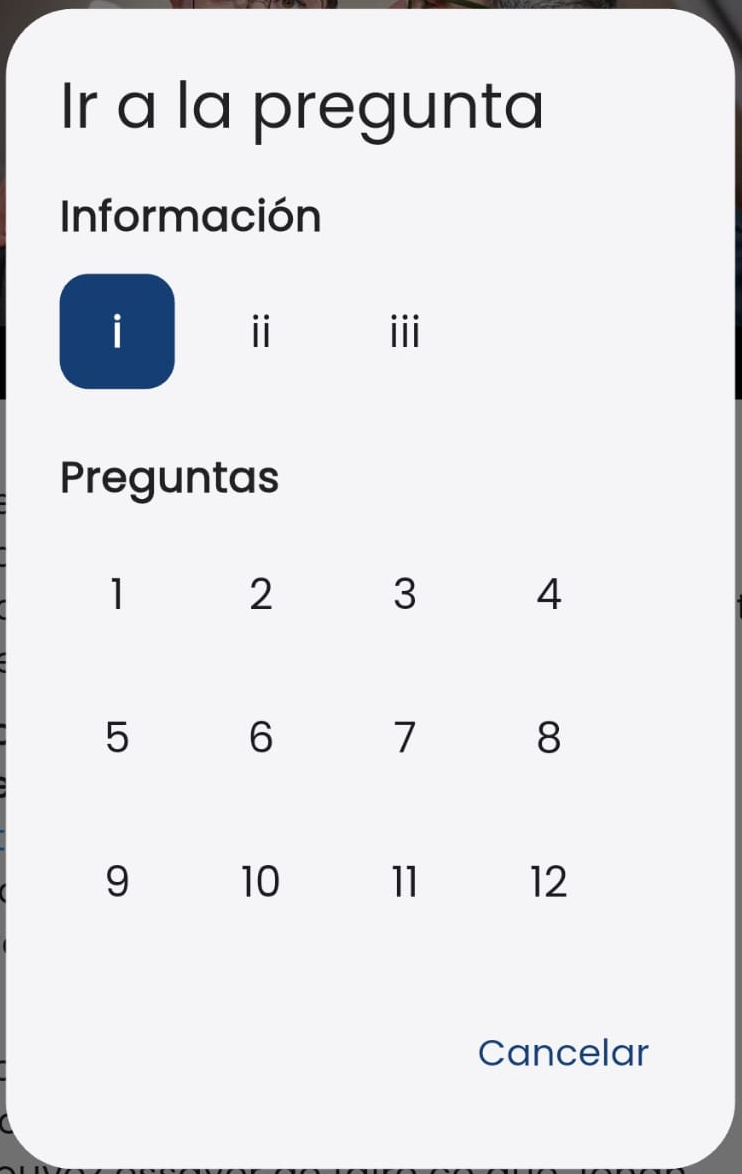
It is important to note that there are two numbering schemes: Information pages (such as general test instructions or an audio transcript) use Roman numerals, while actual exercise questions use Arabic numerals.
Tapping the Roman numerals at the top navigates to an information page, while tapping an Arabic numeral at the bottom jumps to an exercise question.
Top Button Bar
 There are four icons with the following functions:
- The two arrows navigate between questions (previous/next question).
- The trash bin icon discards the question currently being edited. The application asks for confirmation before deleting.
- The diskette icon saves all changes to the database. Make sure to save before exiting.
Question Text Field
 In all cases, there is a text field to write the question or prompt shown to the student.
Hide Question (Do not show in list)
A question can be hidden so that it does not appear directly in the question list in Test Viewer. This is especially useful for informational pages, as explained later.
Hint
In any question, you can add a hint or help tip that will be available when taking the questionnaire.
Question Types
For each question type, we will show what the result looks like in Test Viewer and then how it is configured in Test Editor.
“Fill in the Blanks” Question
The answer can be written or multiple-choice.
Written Answer
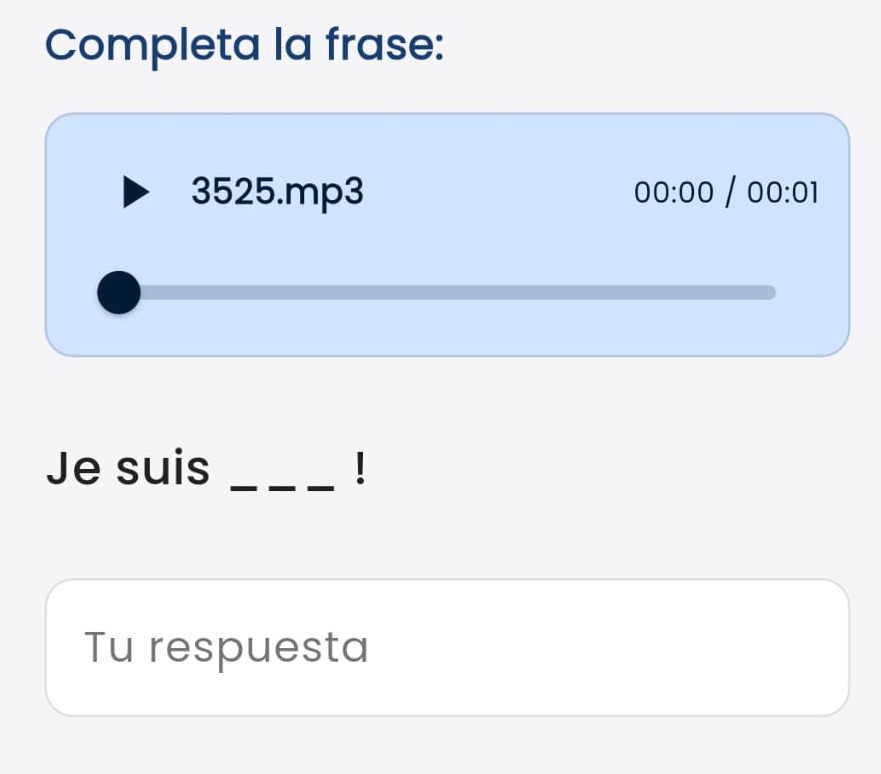 In this question type, the student must complete the sentence by typing the answer. These questions are ideal for reviewing vocabulary and spelling. The image shows a question linked to an audio track (écoute).
There can be up to four blanks to fill.
In Test Editor, “Force written answer” must be active. To indicate blanks in the sentence, use three underscores ”___”. The ”⊔” button inserts the three underscores directly. 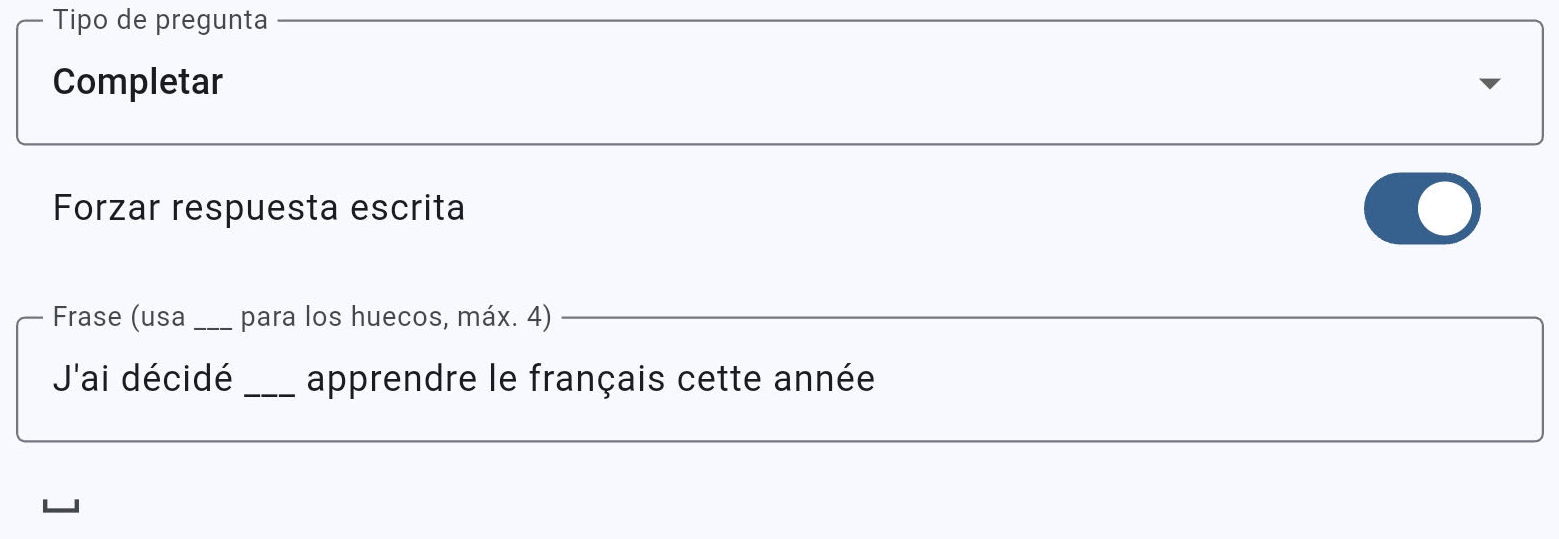
The correct answer is written in the box shown below. 
Multiple-Choice Fill-in-the-Blanks
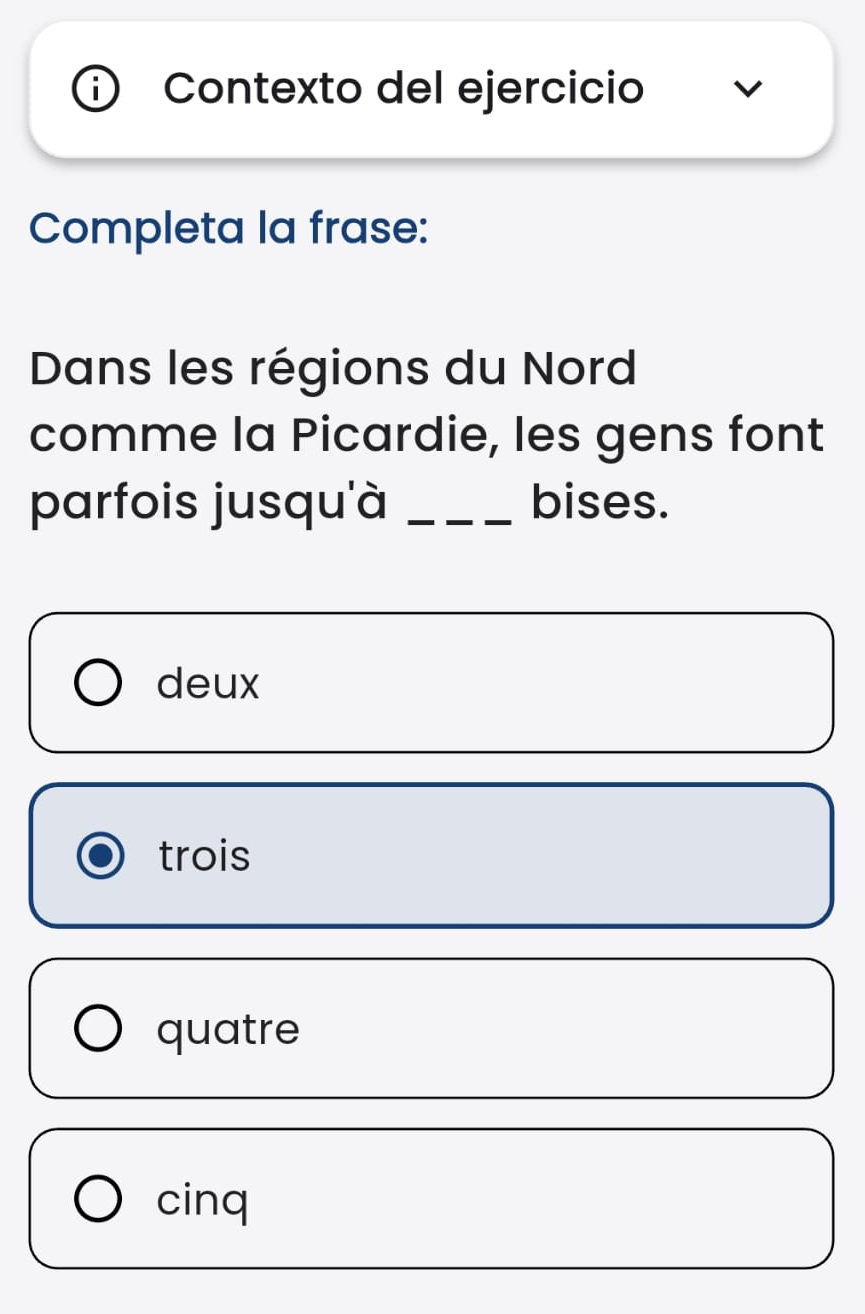 In this question type, the student completes the sentence by choosing from provided options.
There can be up to two blanks to fill.
Several options are provided, of which only one is correct. This works the same as standard “multiple choice” questions. The selected option is the correct answer. In the example shown, it is “arrêter”. 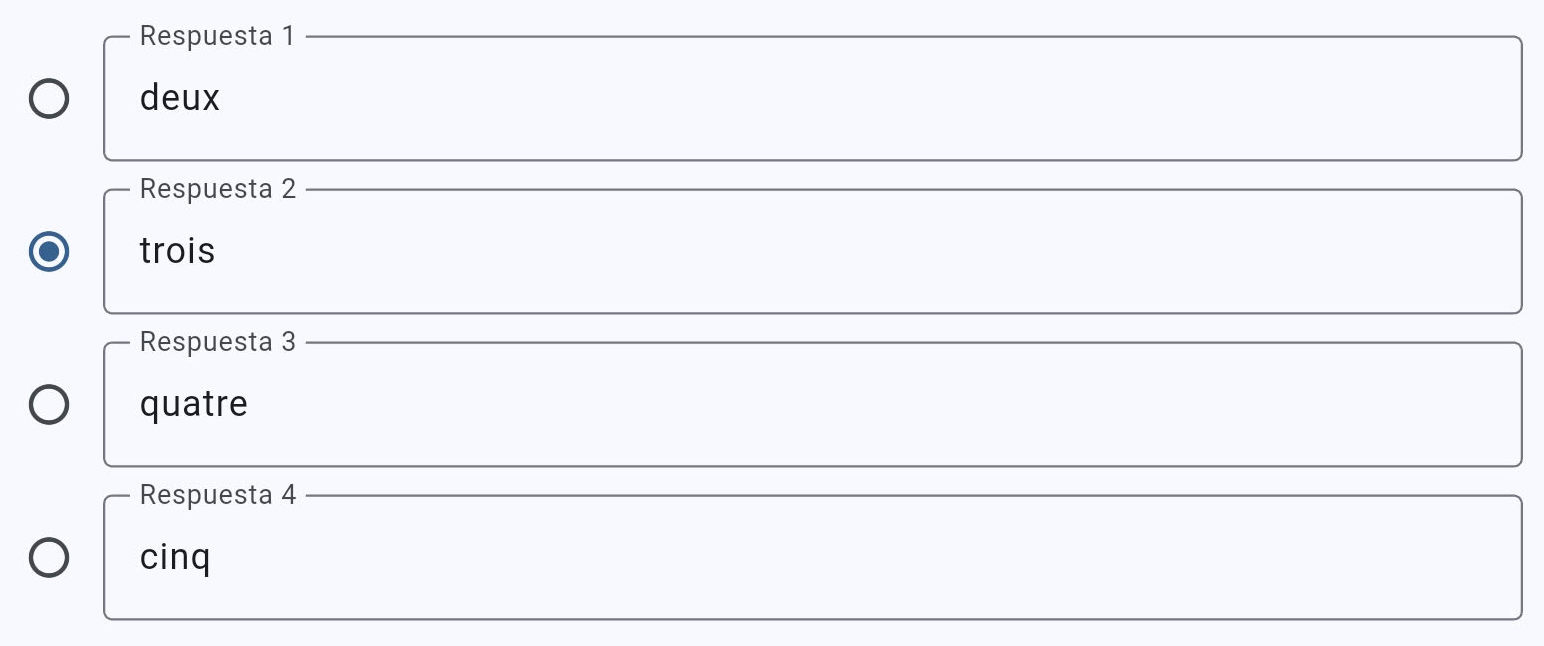
“Multiple Choice” Question
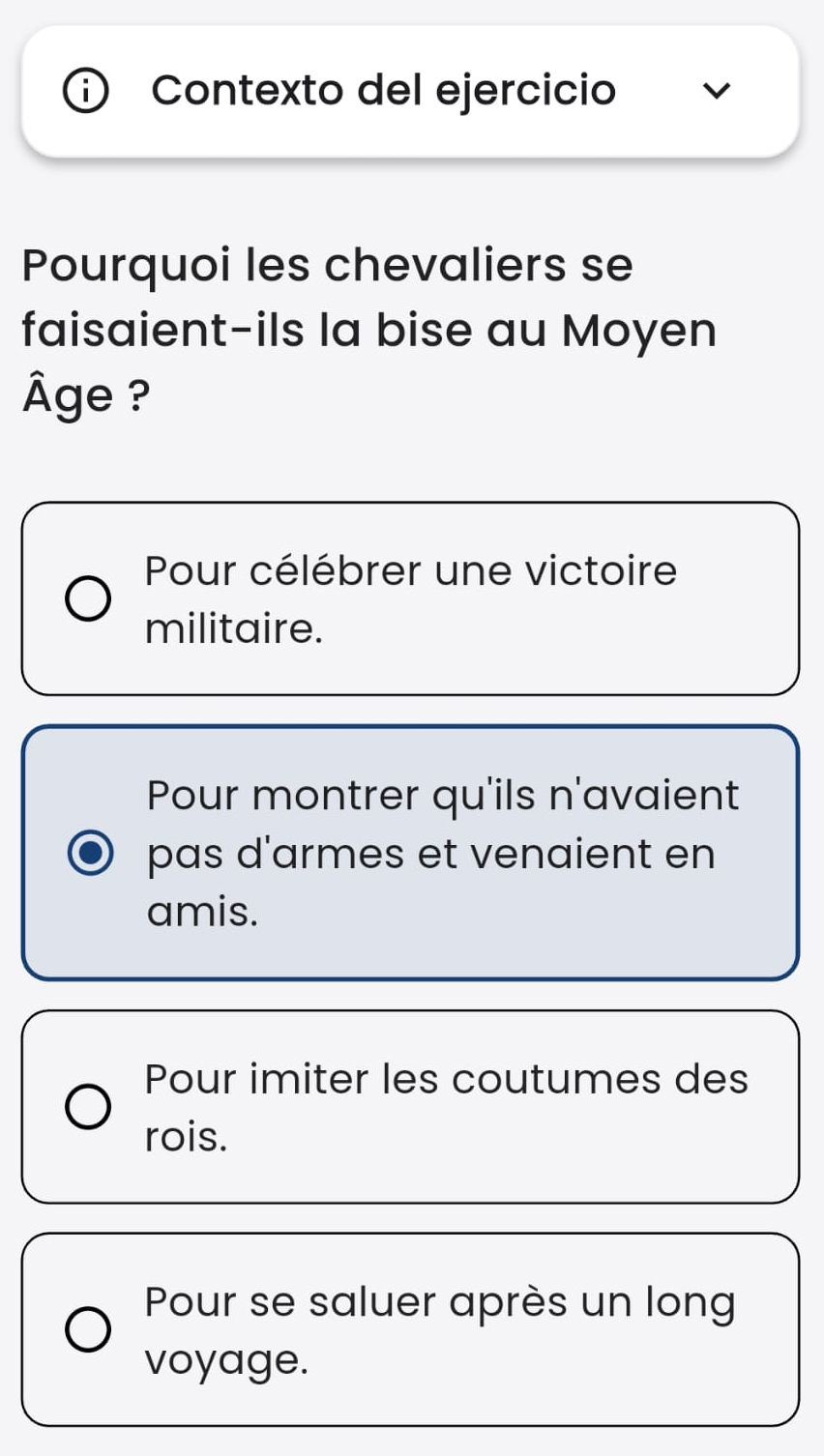 This question type asks a question and presents several options, of which only one is correct.
In Test Editor, you enter all possible answers and select the correct one. 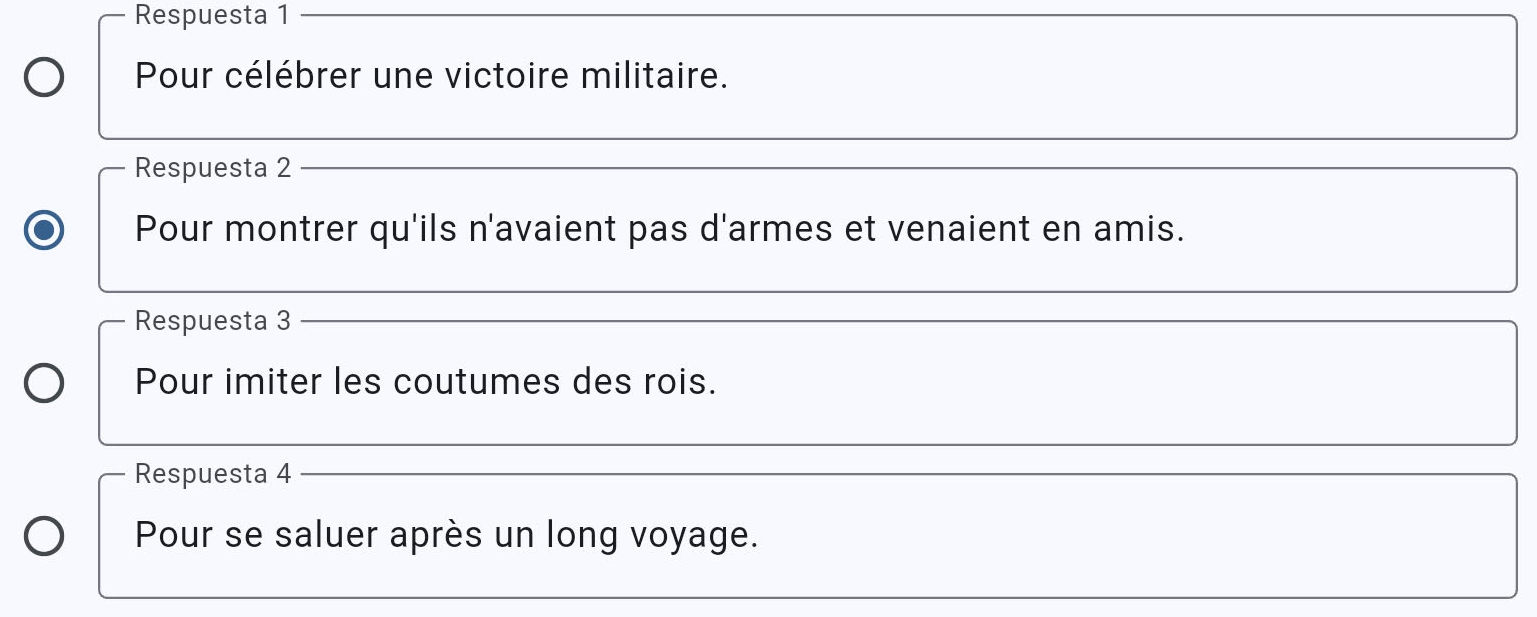
“Multiple Answer” Question
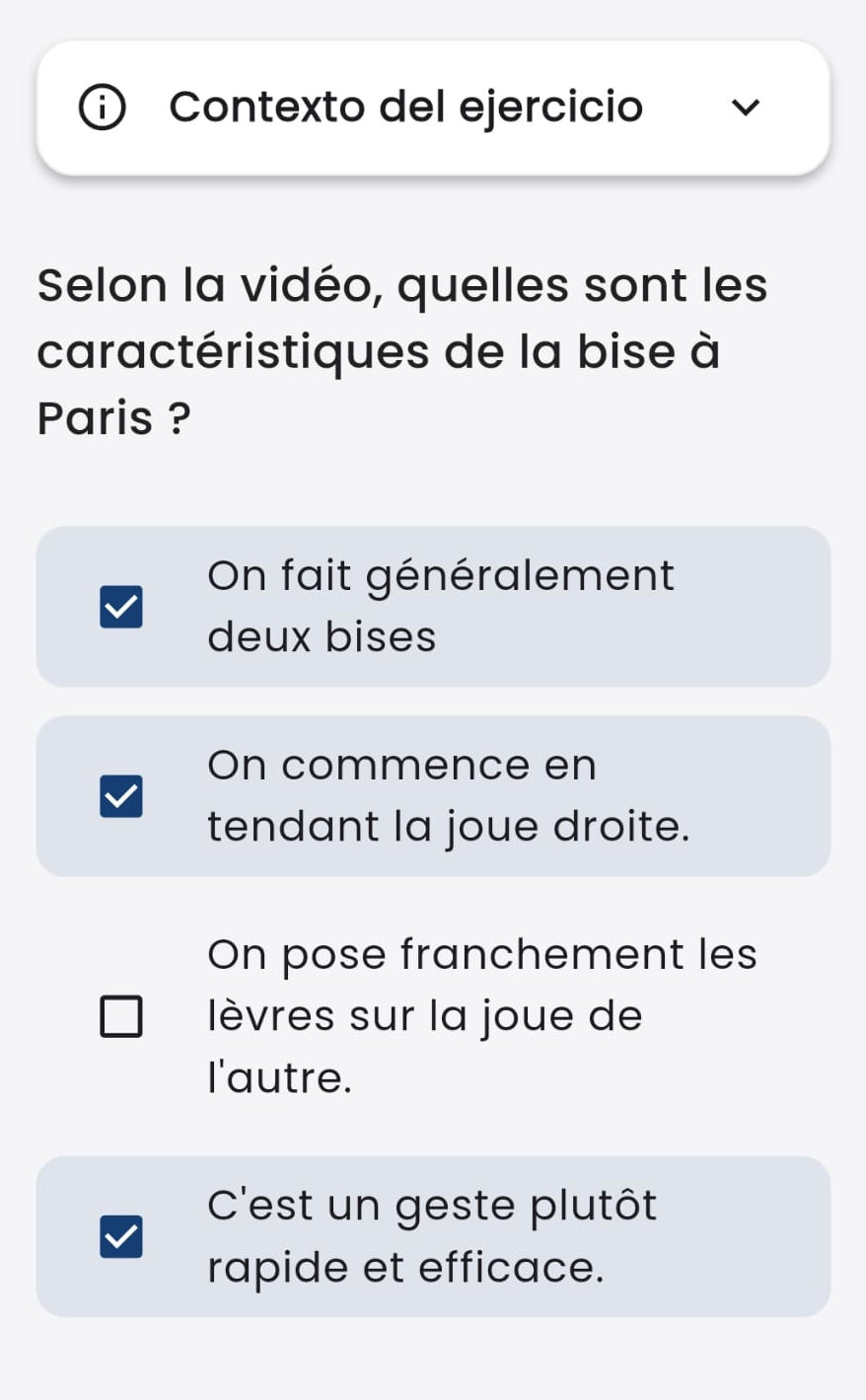
In this case, more than one option, all of them, or none may be valid.
In Test Editor, you enter all possible answers and check all correct options. 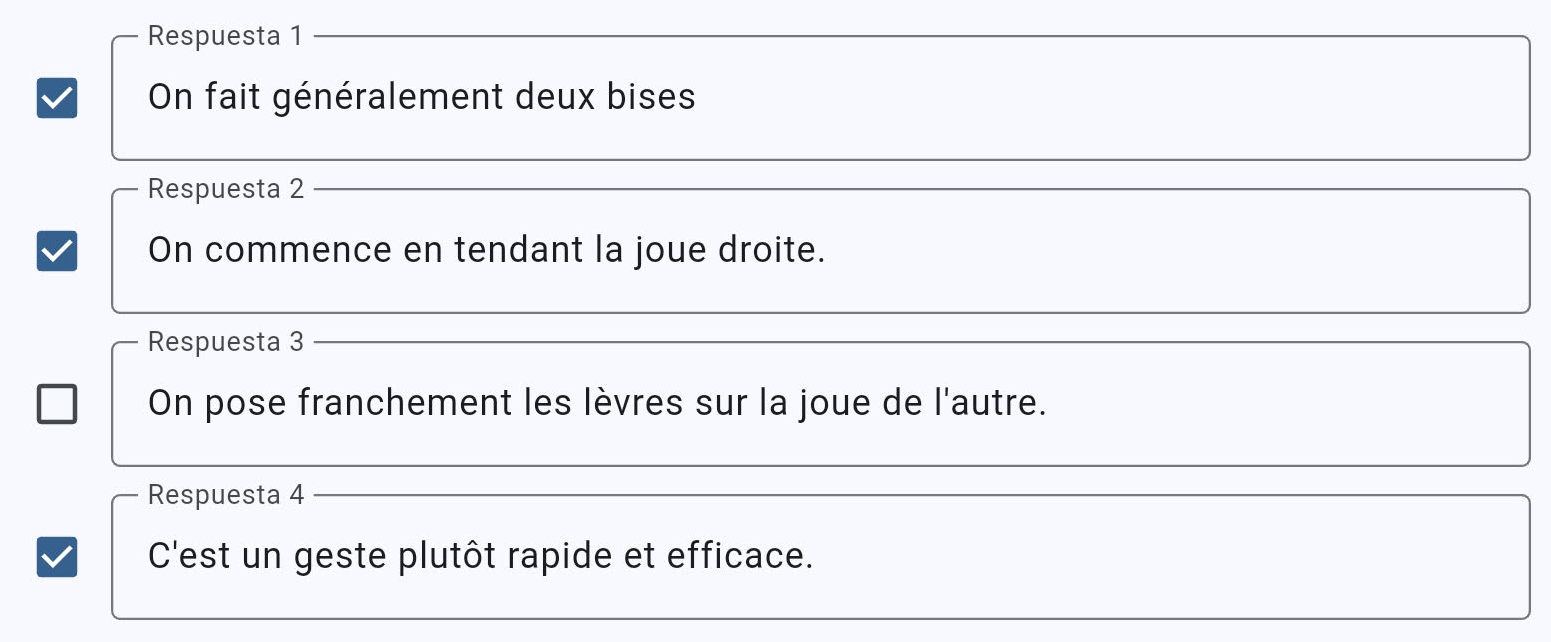
“Matching Columns” Question
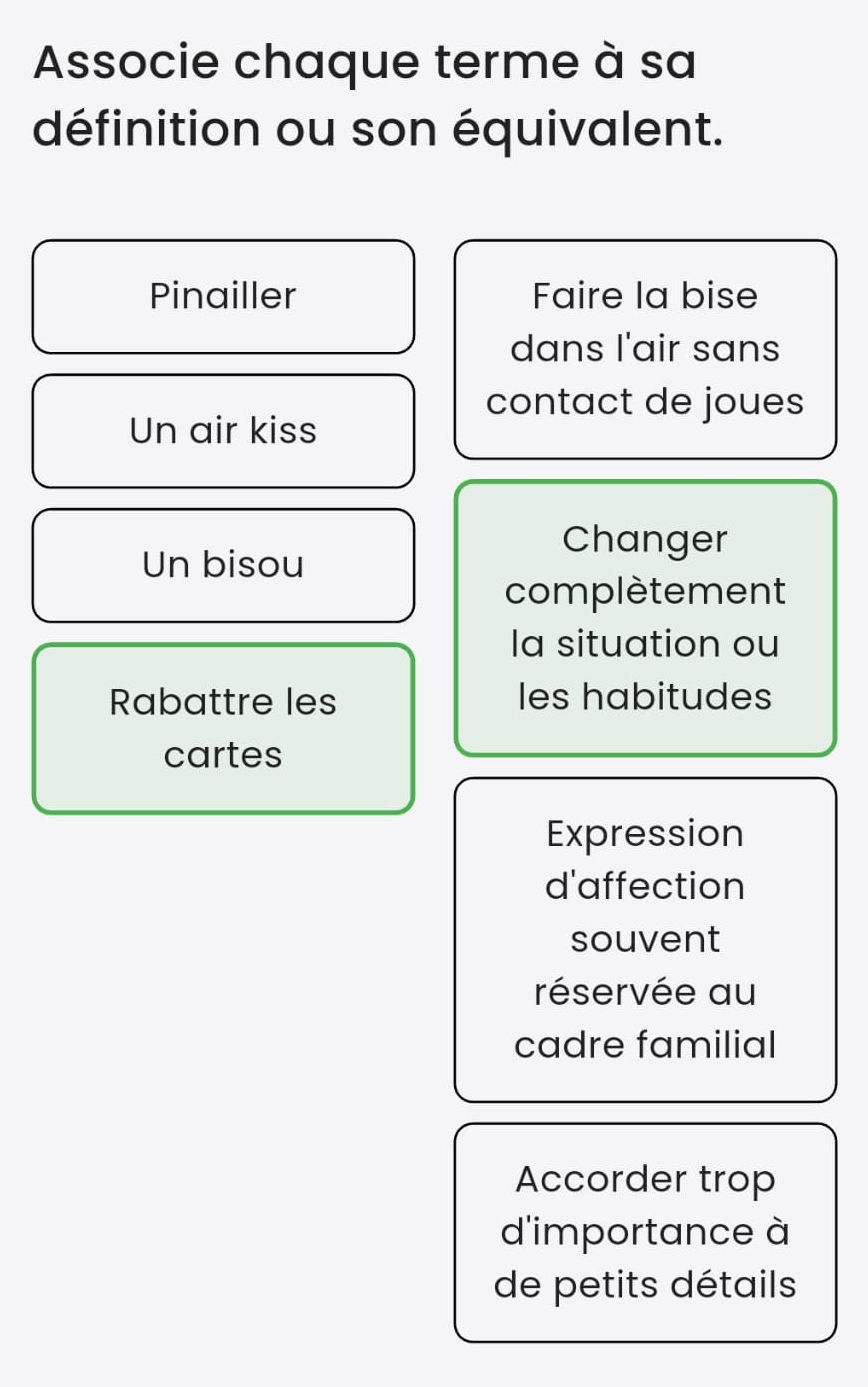
The student must select an item in the left column followed by its matching counterpart in the right column. If the pairing is correct, they illuminate in green; if incorrect, the exercise is briefly locked before allowing another attempt.
The process is repeated until all items in the left column have been matched.
In Test Editor, you enter the text for the left column and the corresponding value on the right. Initially two rows appear, and you can add up to six rows.
- To add a new pair, click the ”+ Add pair” button.
- To delete a pair, click the red cross icon.
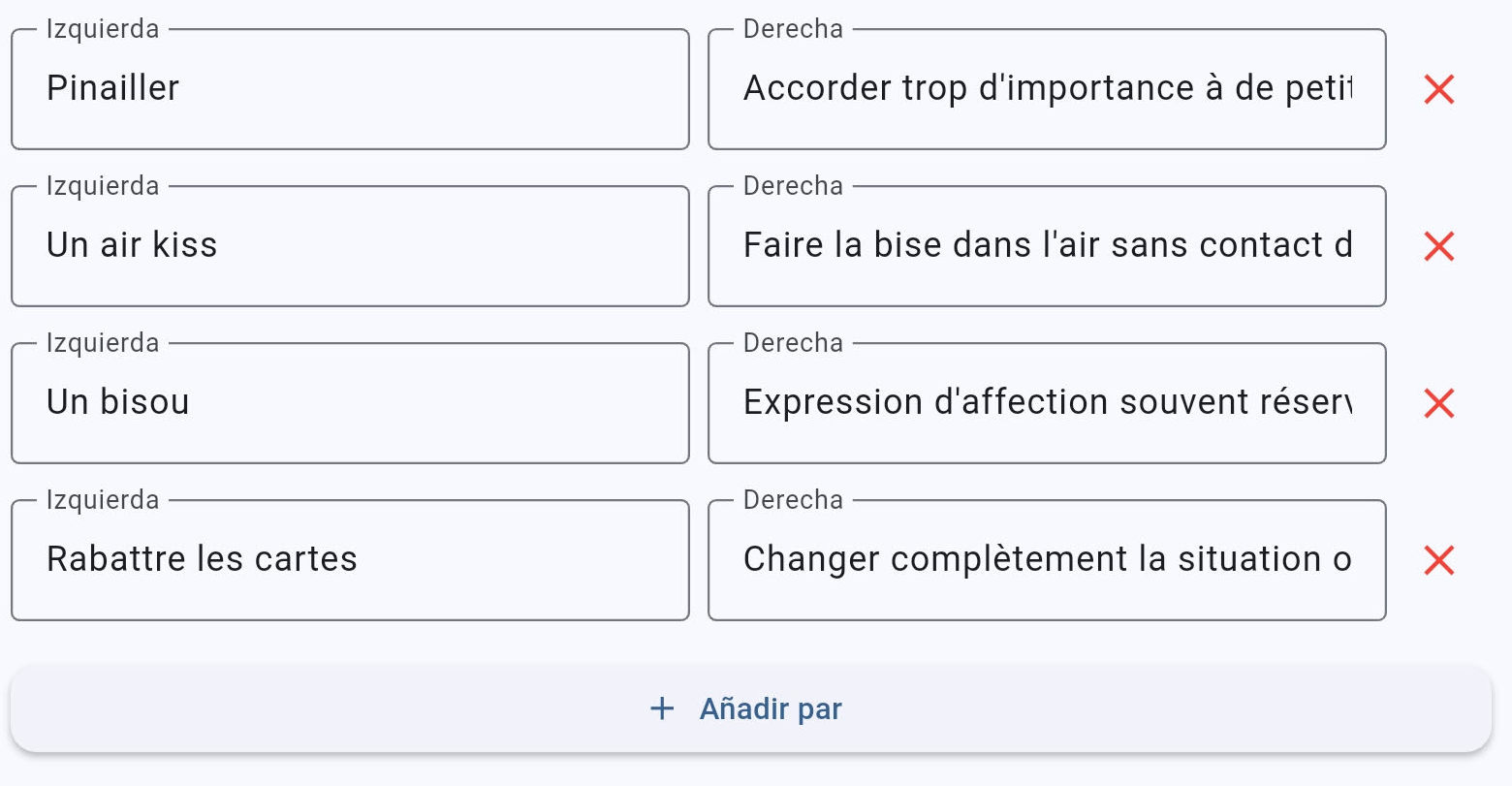
Test Viewer randomizes the order of items when taking the questionnaire.
“Ordering” Question
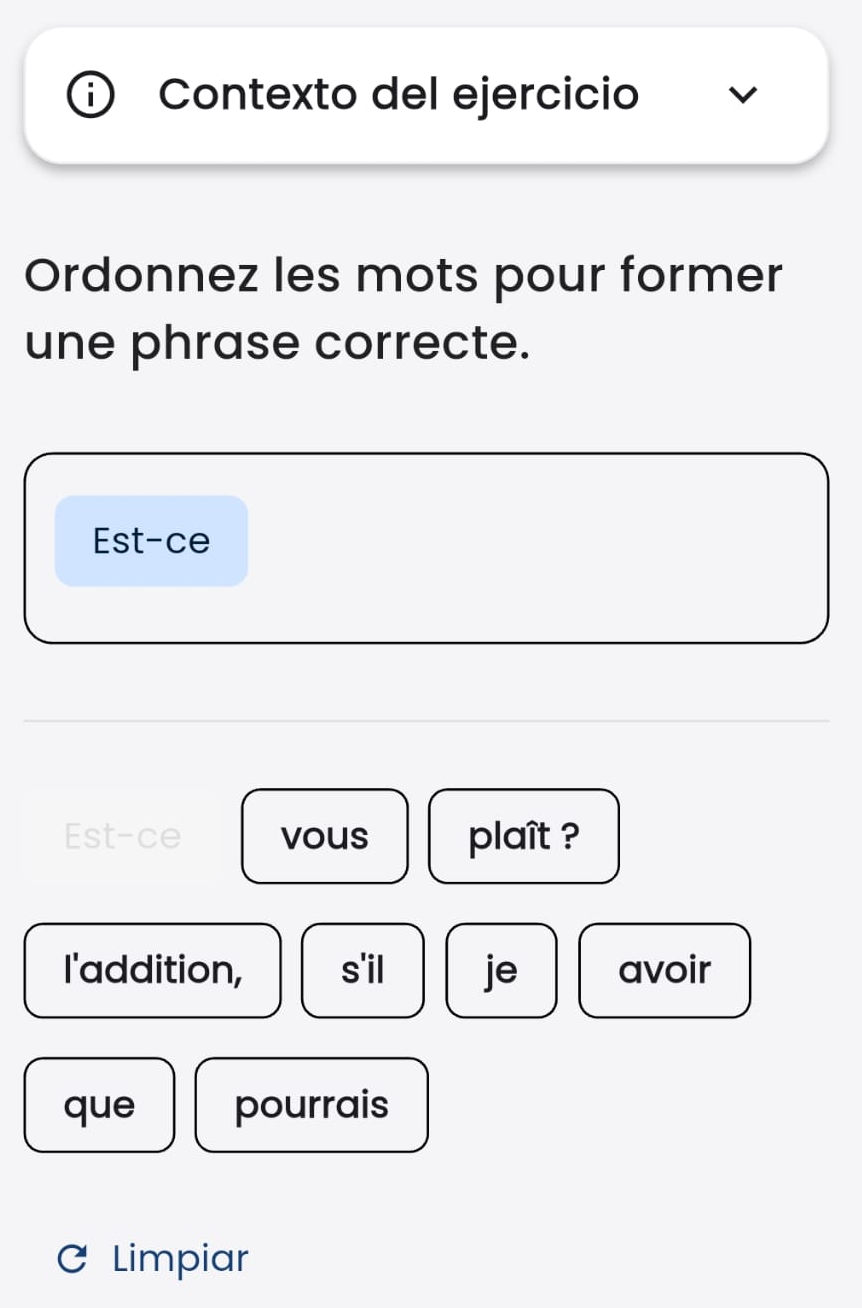
The student must select the offered elements in the correct order. If an element was selected mistakenly, tapping it removes it from the answer.
The clear button removes all selected elements to start over.
 In Test Editor, write the correct answer using slash separators ”/” to mark where words or elements split. Test Viewer will display these elements shuffled when presenting the questionnaire.
“Information”
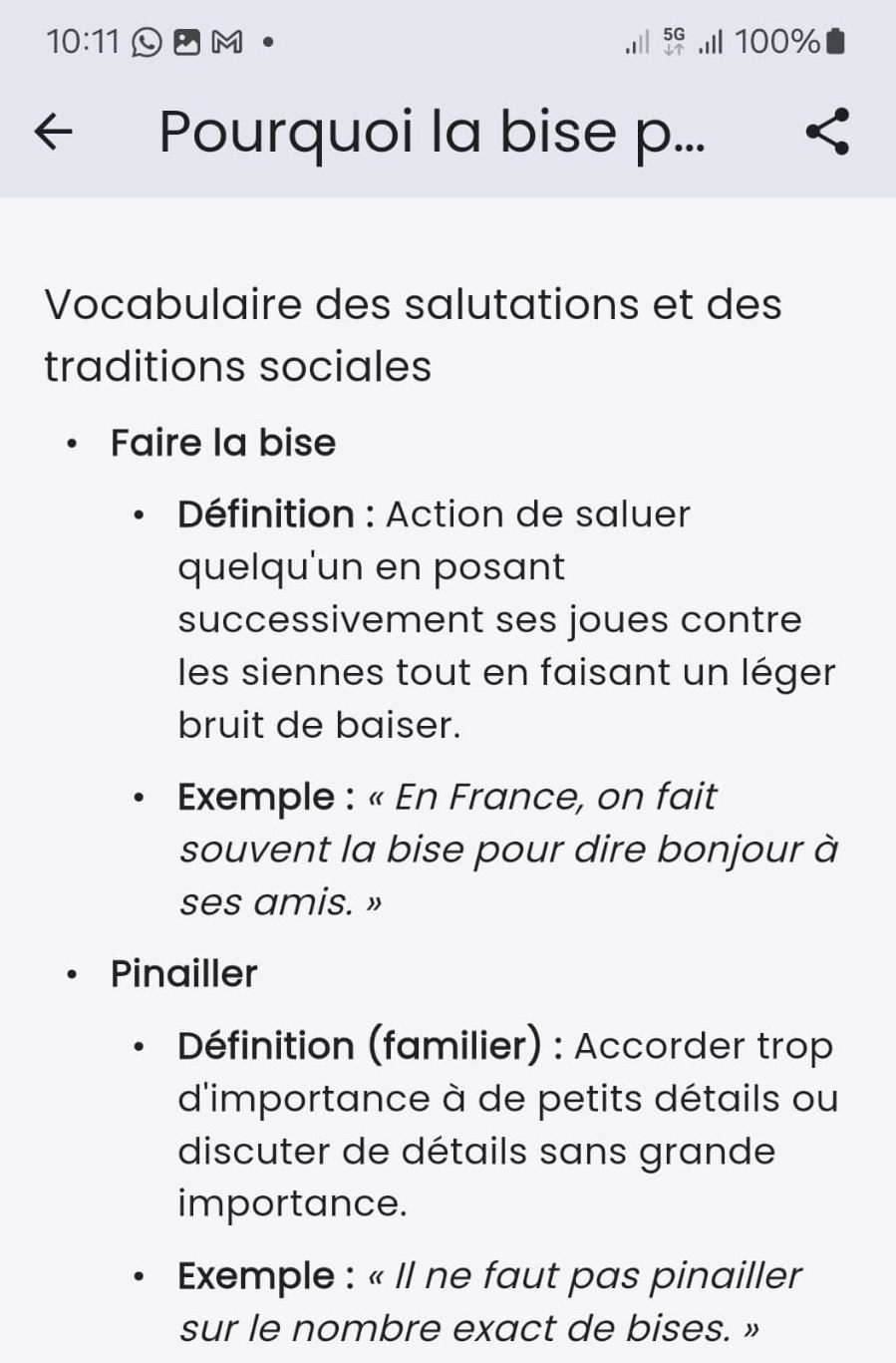
This is an informational item that does not require an answer from the student.
It is used to provide supplementary material related to the questionnaire, such as audio transcripts, vocabulary summaries, grammar notes, etc.
Informational pages can be exported and shared in PDF format by clicking the button in the upper right corner of the screen.
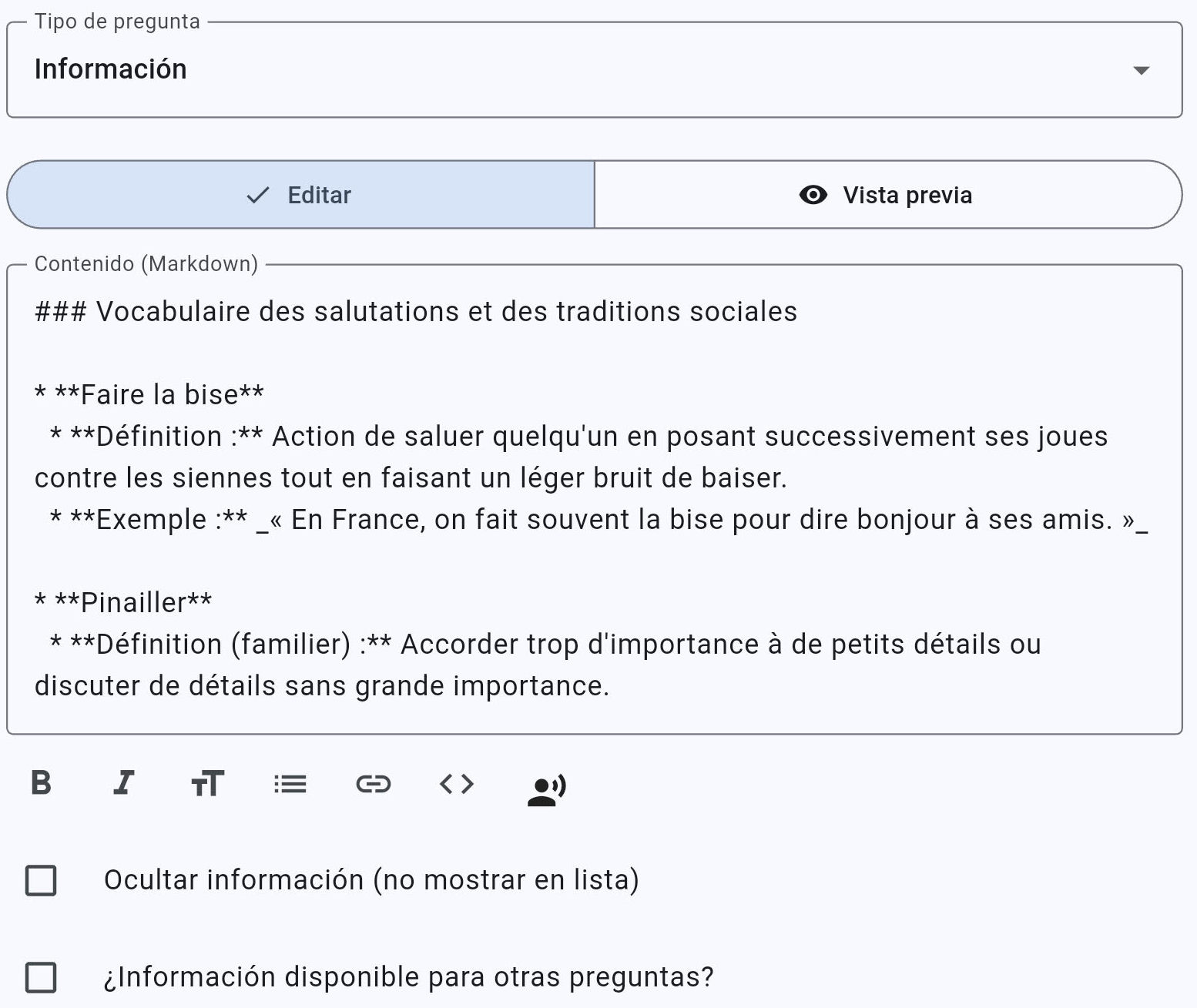
Content (Markdown) When “Edit” is active, you can write formatted text using Markdown or plain text. There is no limit on the number of lines. Tapping “Preview” displays the text exactly as it will appear in Test Viewer or in the exported PDF.
Below the editor are shortcut buttons to help write Markdown syntax.
Information available to other questions?
Enabling this option makes the content accessible from other questions that enable “Meta-question information”.  This option is especially valuable when attaching a video or audio file that applies to multiple questions. Instead of duplicating the media file in every question, you create a single Information page with the media and share it across questions. Additionally, audio/video playback position is maintained when moving between questions.
Hide information (do not show in list)
In the case described above, you may not want the informational item to show as an independent question in the list, but rather only linked to associated questions. Enable this option to achieve that.