
Test Viewer: Exercises and Tests
Learn how to load and take French exercises using Test Viewer.
In this tutorial, we will describe step by step the features available in the exercises and tests module. We will start by downloading one of the exercises available in the official Lekusoft repository.
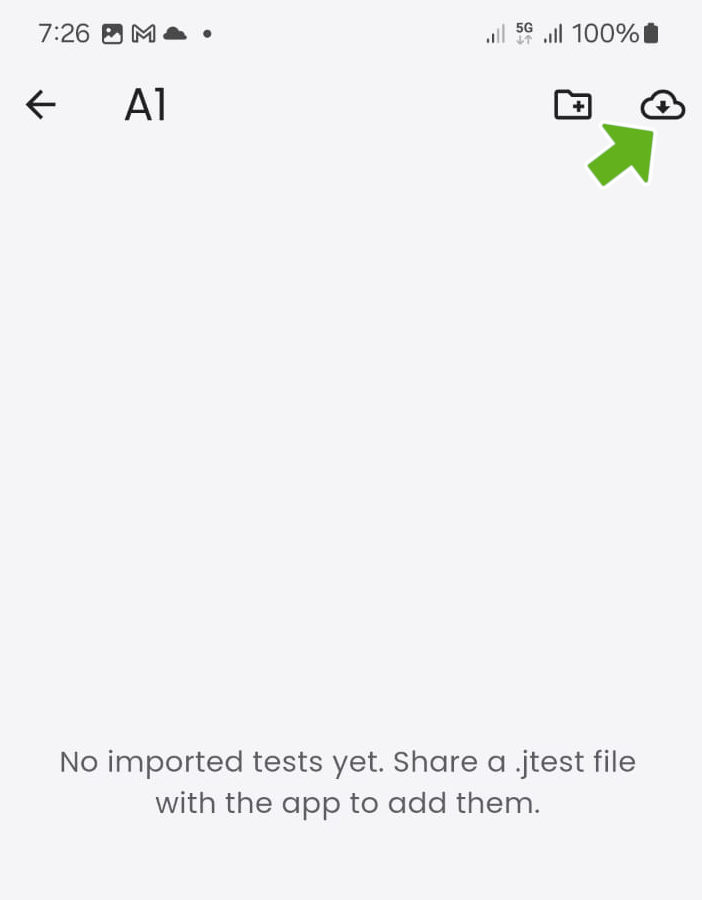
When opening the application for the first time, the exercise list is empty. There are different ways to load content into the application, but the fastest and most convenient is accessing the exercises offered in the official Lekusoft repository. To do this, click on the cloud icon (indicated by the green arrow).
Your French teacher (or you yourself) can create an exercise repository in Google Drive to store exercises prepared with Test Editor. This is a very convenient way to share interactive exercises in class.
Another tutorial explains how to configure the application to download exercises from different repositories.
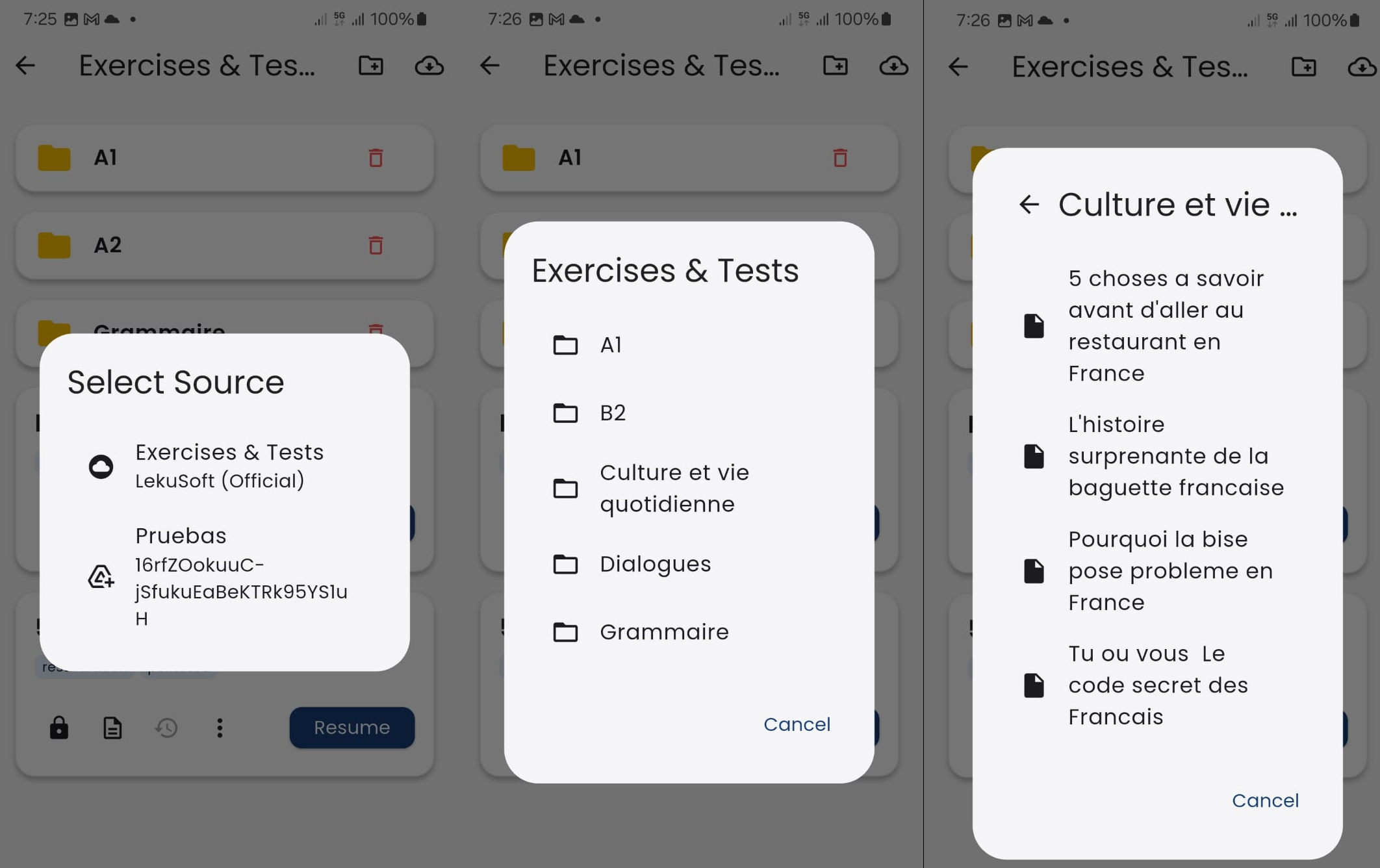 If no new exercise repositories have been added, only the official Lekusoft repository will appear. You can navigate through the folder structure until you find the file you wish to download. Tapping it starts the download, which may take a few seconds depending on the file. Afterwards, the application requires a few more seconds to process and save the questionnaire into its database.
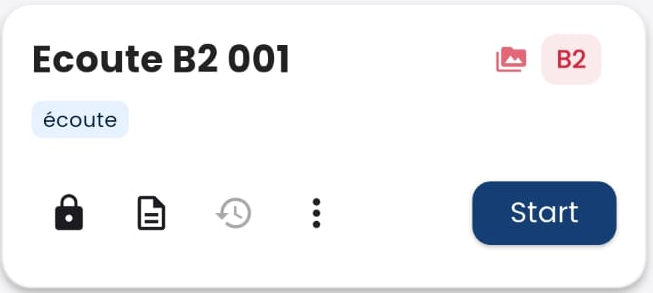 A questionnaire with multimedia files (red icon with mountains) and a CEFR level B1+ has been loaded. Below the title, several tags appear that can be used to filter files. In the next line, there are four icons and a button with the word “Start”. Let’s explain each of them:
- 🔒: If the padlock is closed, the file is protected and can only be edited by someone with the password. It can be unprotected by clicking on the padlock.
- 📄: Clicking it displays a description of the questionnaire, the number of questions, and the version.
- 🕘: Only enabled if the questionnaire has already been completed at least once, showing previous results.
- ⋮: Opens another menu with the following options:
- Move: to move the file to a folder (the folder must have been created beforehand)
- Share: the file can be shared (for example, sent by email)
- Edit tags: to delete or add tags
- 🗑️ Delete: deletes the file
Clicking the “Start” button begins the questionnaire.
Editing Tags
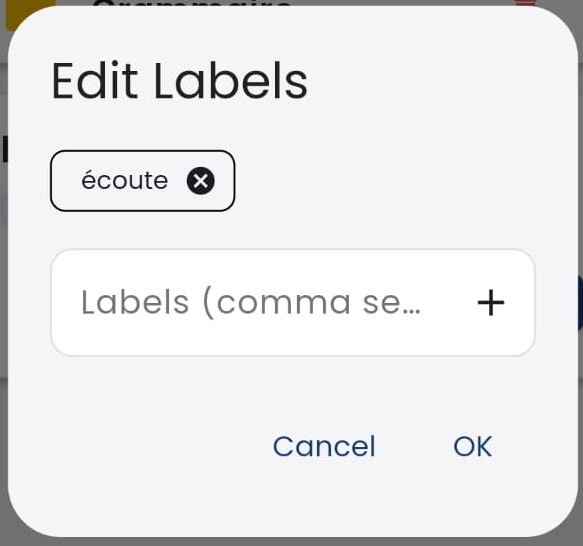 To add tags, type them into the text box and click the "+" button. Then click "Accept" to save changes or "Cancel" to discard them.
Navigation
The navigation buttons allow us to move through the questionnaire without losing progress: 
|<: Goes to the beginning (whether it is an informational page or a question).←: Moves one position backward.→: Moves one position forward.>|: Goes to the end (where the button to finish the questionnaire appears).
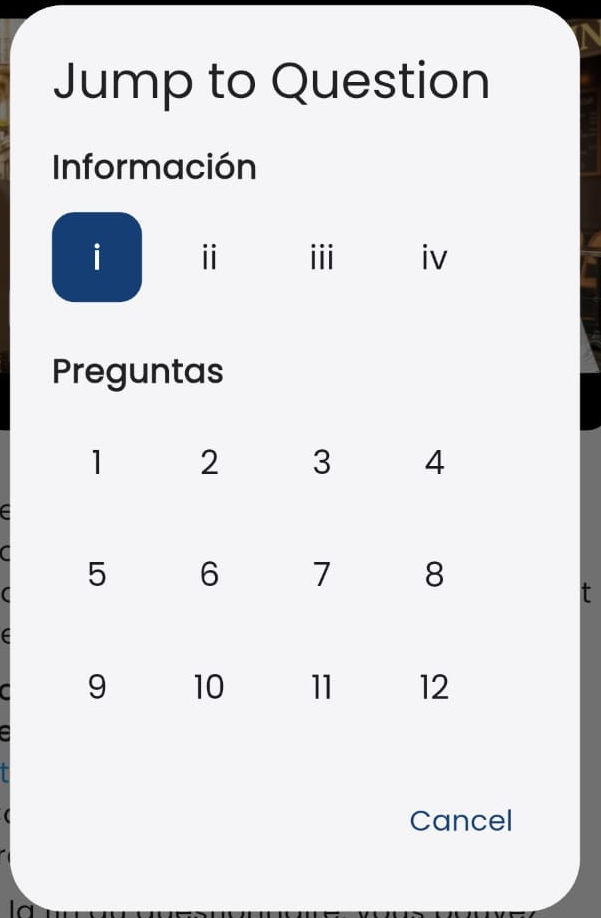
You can skip a question for later and return to it afterwards. It is important to know that there are two numbering schemes: **informational** pages (which can be, for example, general test instructions or an audio transcript) use Roman numerals, while actual exercises use Arabic numerals.
Clicking on the page numbers opens a dialog to select which question or informational page to go to, as shown in the image. Tapping the desired page takes you right to it.
Printable Content
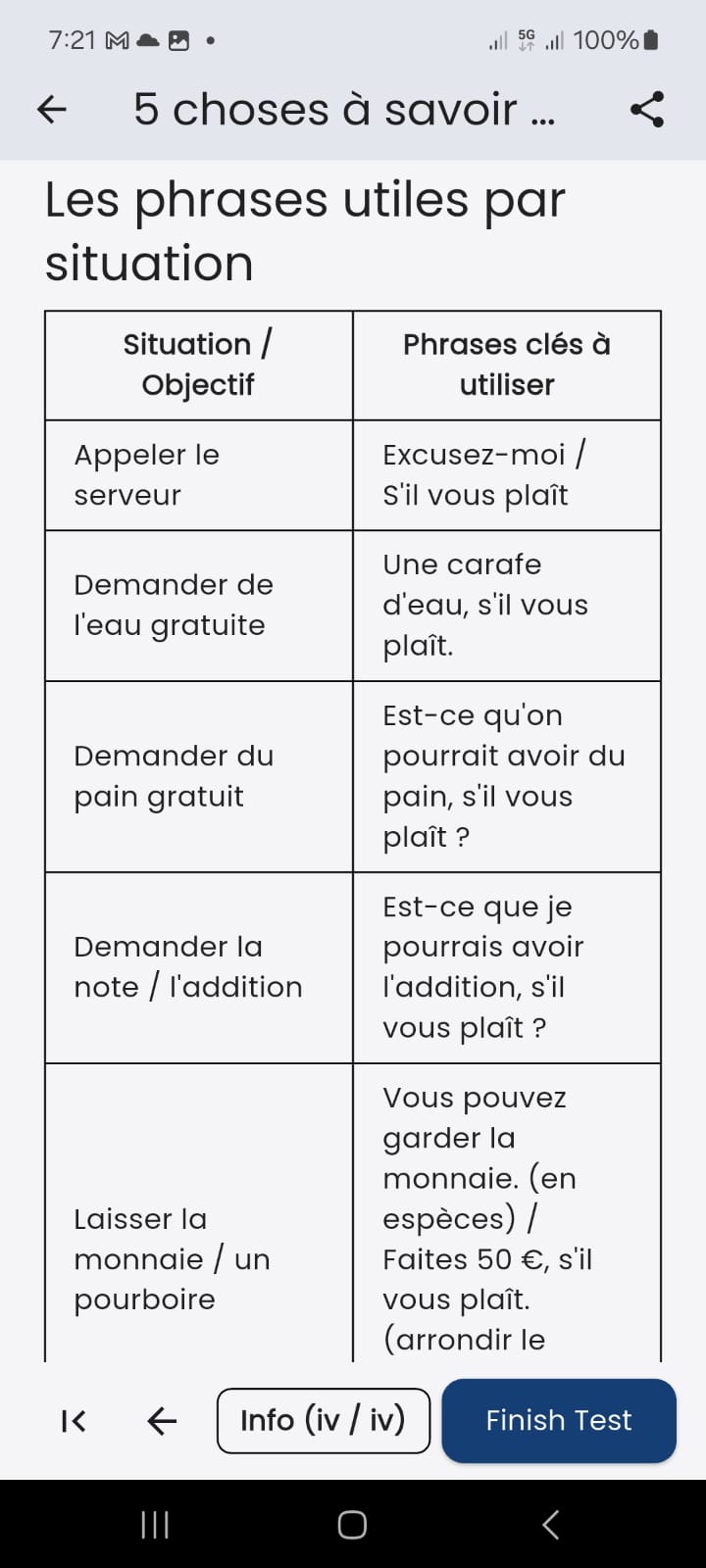
Many exercises include informational pages such as transcripts, content summaries, vocabulary lists, etc. These pages can be converted into a PDF file and shared via social media, email, etc. They can also be printed directly from the application. To share an informational page, click the button indicated by an arrow.
In the case shown in the image, a “Finish test” button appears because it is the last page of the questionnaire. Clicking it displays the results, which can also be converted to PDF and shared.
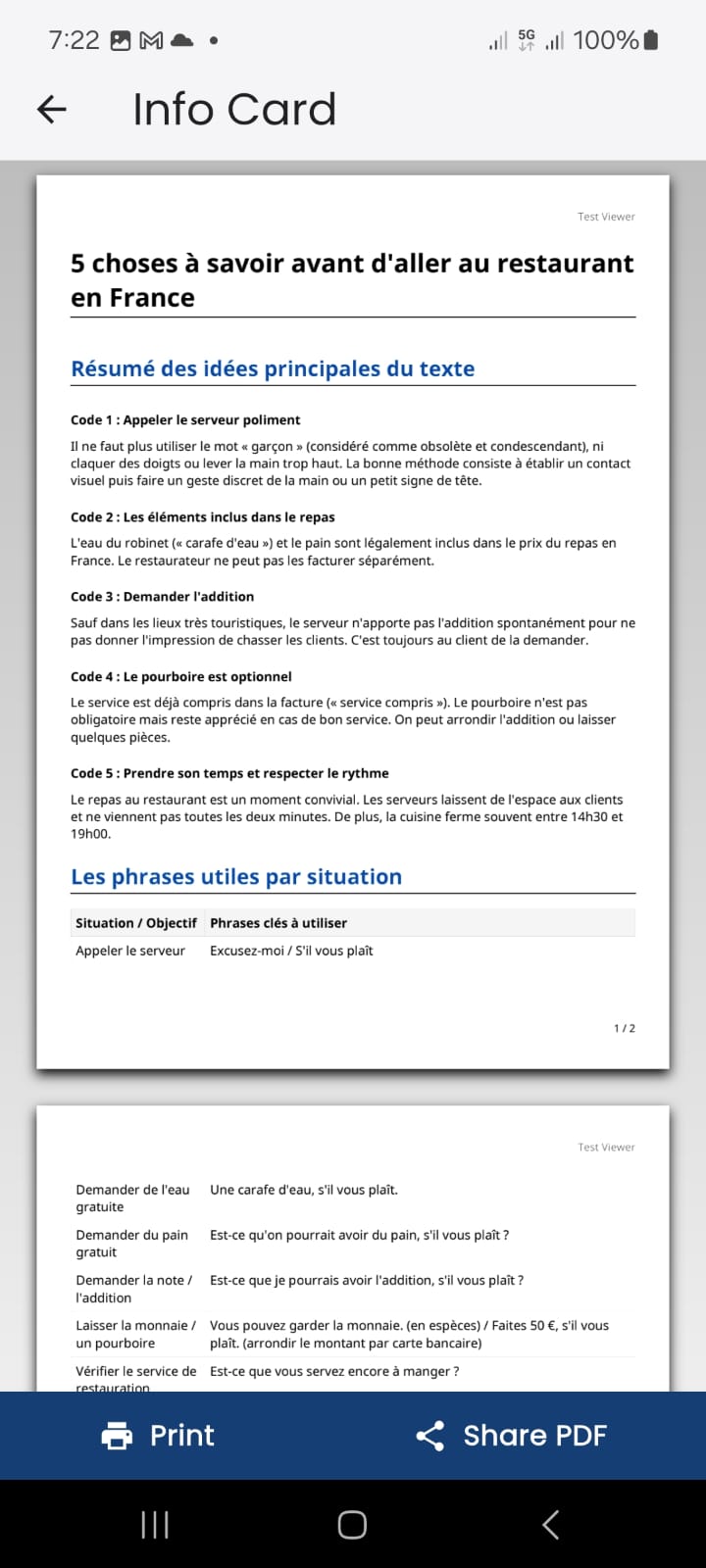
The image shows the printable PDF, which can be shared by clicking "Share PDF" at the bottom right, or printed directly by clicking "Print".
Test Results
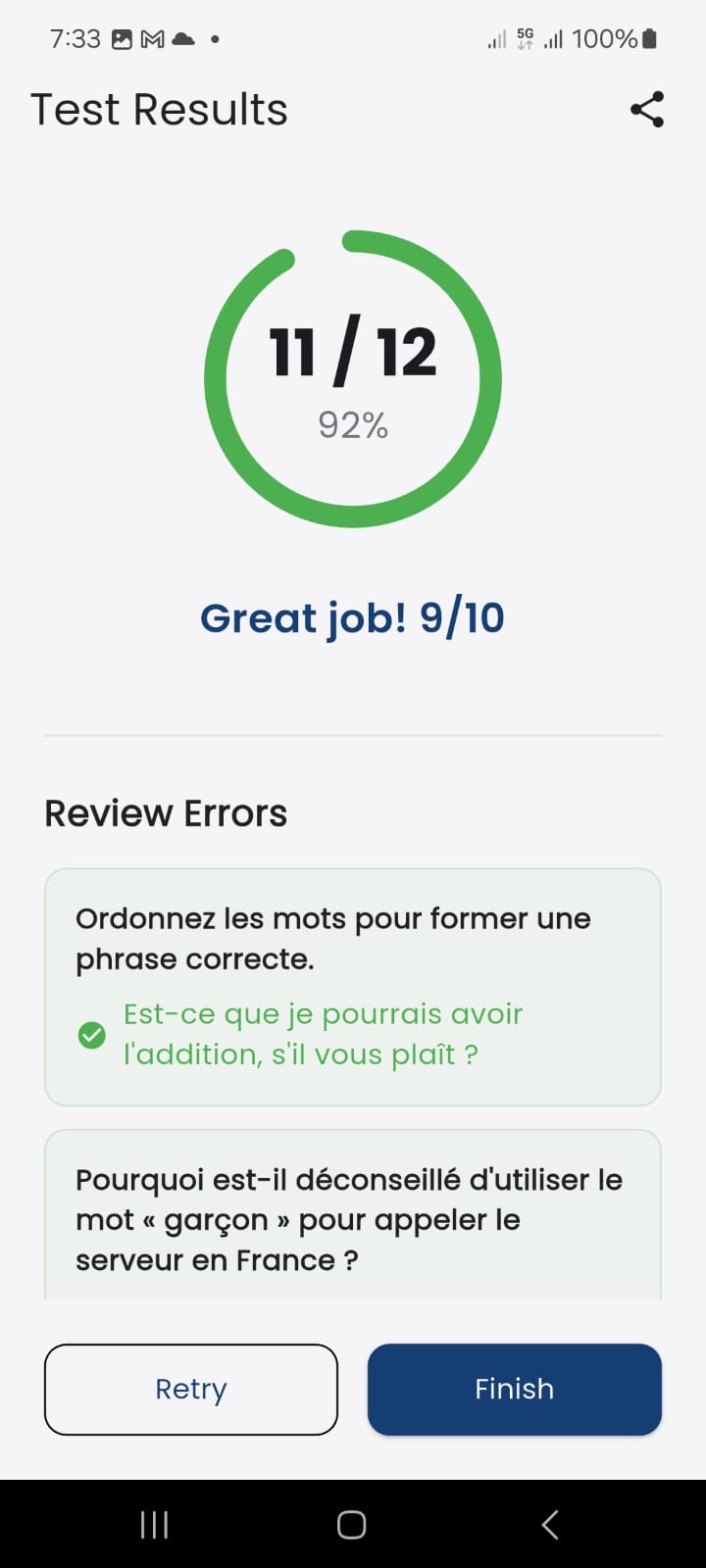
Upon finishing a test, the overall score and every answer are displayed, indicating whether each answer was correct and showing the corrected answer if it was incorrect.