
Test Editor: Memory Cards (Flashcards)
Learn how to use memory cards (flashcards) in Test Editor.
Introduction
Before describing the flashcard editor, it is helpful to understand how flashcards appear in Test Viewer and how spaced repetition works.
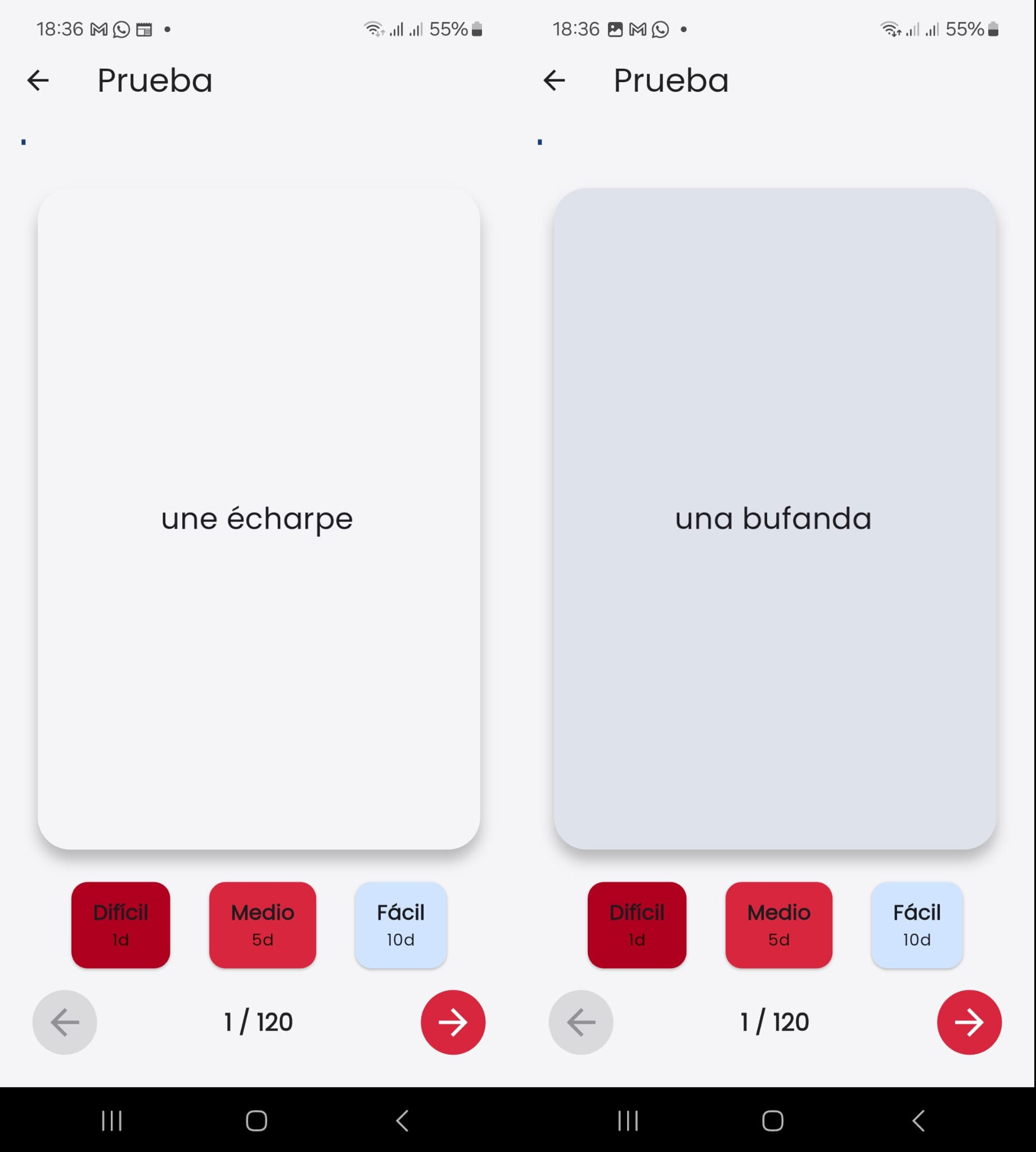
Memory cards (flashcards) allow review using the Spaced Repetition System (SRS). The image above shows the front and back of a card.
When viewing the front, the student should think of or say out loud the content of the back. Tapping the card flips it to show the back so they can check whether their answer was correct.
Pressing one of the buttons beneath the card triggers spaced repetition scheduling (this is configurable). If the student knew the answer, they tap Easy so the card is not shown again for several days. However, if they did not know the answer, tapping Hard ensures the card is shown again as soon as possible.
To learn how the spaced repetition system operates in the application, follow this link.
Flashcard Deck List
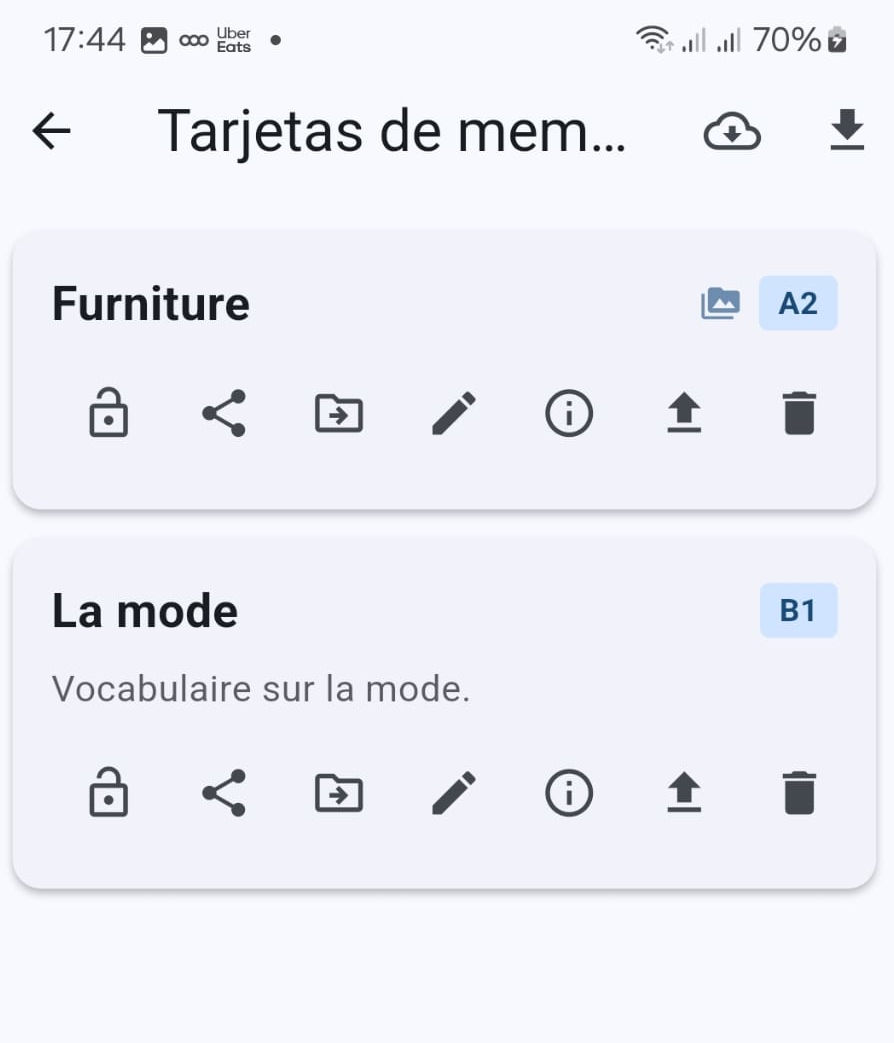
Just as with tests, the deck list screen starts empty. Users can create a new deck by tapping the ”+” button at the bottom right or import existing decks using the buttons in the upper right (cloud and downward arrow).
Once card decks are created, the deck list shows for each deck:
- The title and attributes on the right, such as CEFR level or multimedia icons.
- The first line of the description.
- Tags.
- A button bar (explained in detail in the next section).

Available buttons from left to right:
- 🔒 : if locked, the file is password-protected and can only be edited by someone with the password. Tap the lock to unlock it.
- 🔀 : share allows sending the flashcard deck to another app or saving it to a folder.
- ➡️ : moves the file to a folder. The folder system is identical to Test Viewer’s (folder system description).
- ✏️ : edit the card deck.
- ℹ️ : edit general deck properties (title, description, etc.).
- ⬆️ : batch import cards from a CSV or Excel file.
- 🗑️ : delete the card deck. The app asks for confirmation before deleting.
Creating a New Flashcard Deck
Tap the ”+” button in the lower right corner of the screen. A menu with two options appears: “New card set” and “New folder”. Select the first option.
A form appears asking for the “Card Deck Title”. This is a mandatory field, and once filled, the “Create” button at the bottom right is enabled. Remaining fields can be filled in later: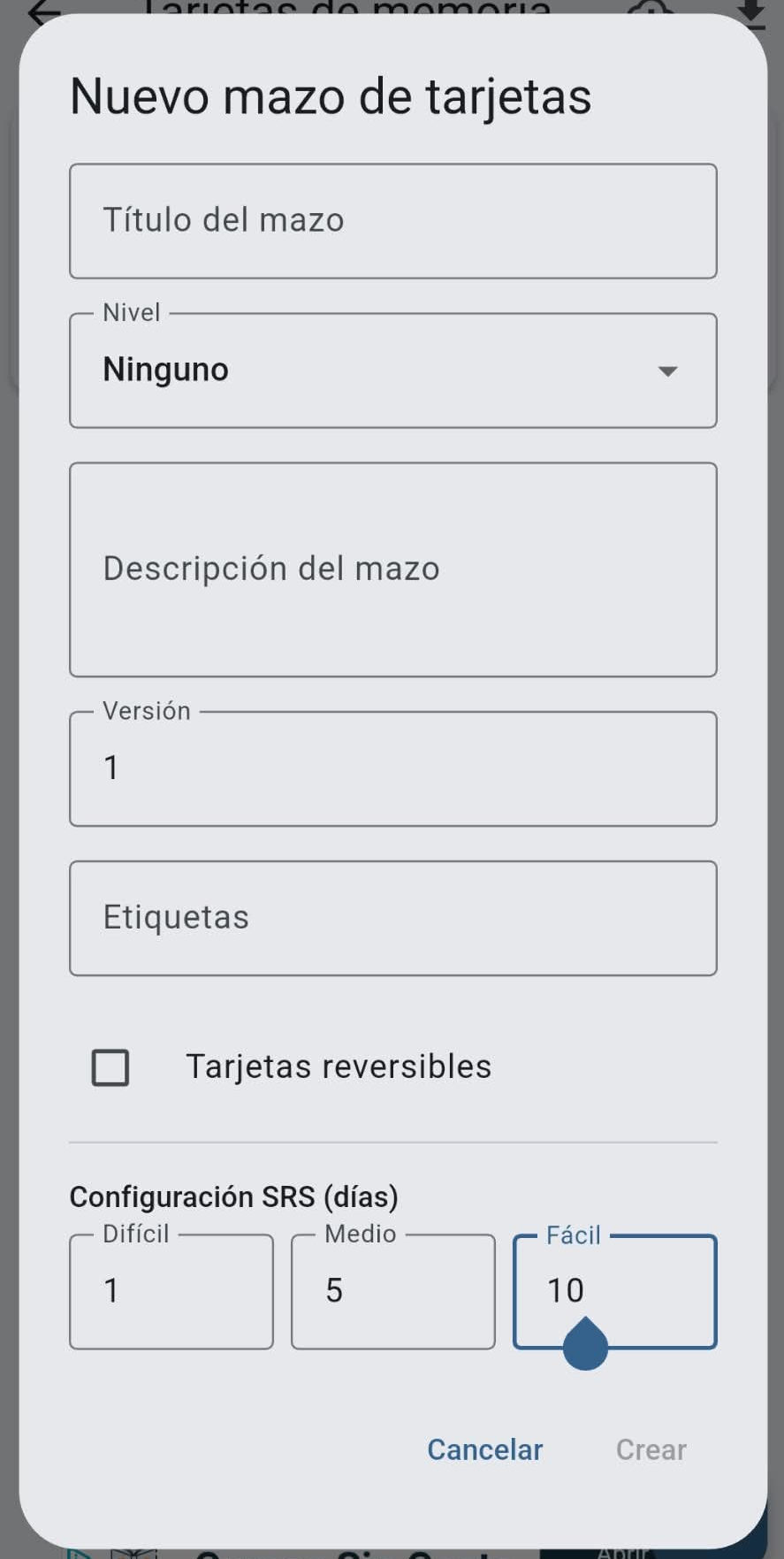
Level: according to the Common European Framework of Reference for Languages (CEFR)
Description: Deck description. Markdown formatting is supported (click here to learn more about markdown)
Version: to maintain version control if desired
Tags: to assign attributes to the deck (for example, “écoute”)
Reversible cards: allows practicing front-to-back or back-to-front
SRS Configuration: to set the number of days between review intervals
Editing a Card
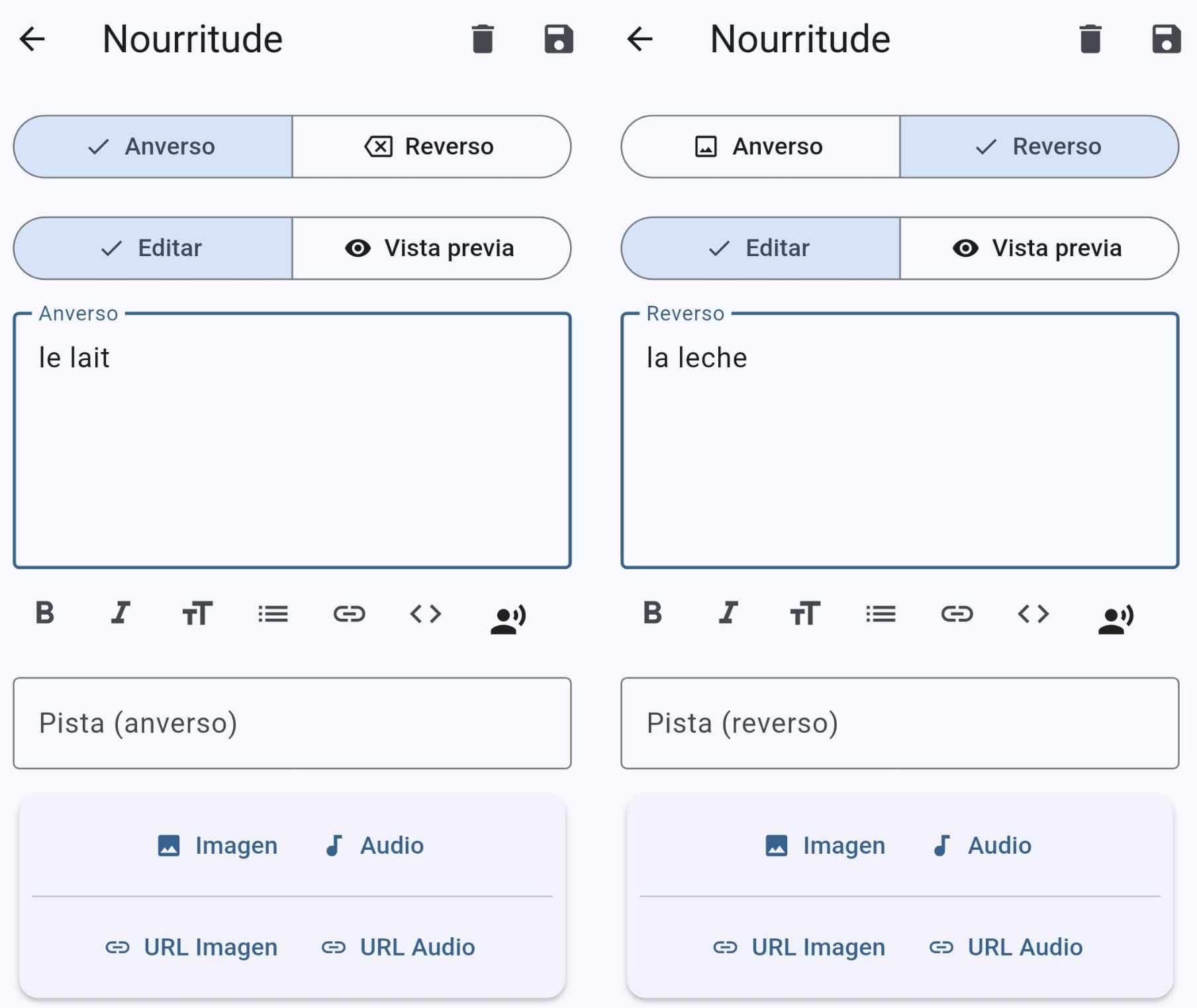
The image illustrates editing a flashcard (front and back are visible side by side). First choose whether to edit the front or the back. “Edit” must be active. “Preview” shows how the Markdown will render.
 The formatting buttons are self-explanatory, except for the one showing a person speaking. That button marks text for text-to-speech (TTS) audio pronunciation during study. Select the text, tap the button, and choose the language.
In edit mode, it looks like this: 
And the preview is: 
Finally, you can attach images and audio to a flashcard. Videos are not supported because flashcards are meant for quick, iterative reviews, which video media is not suited for.
Importing Cards from a Spreadsheet
Test Editor allows batch importing cards from a CSV or Excel file. The table must contain 4 columns with the following headers: Front, Back, Hint, Hint Back. “Hint” and “Hint Back” can be left blank. Hint and Hint Back can provide a tip or example on the front and back respectively. An example table is shown below: 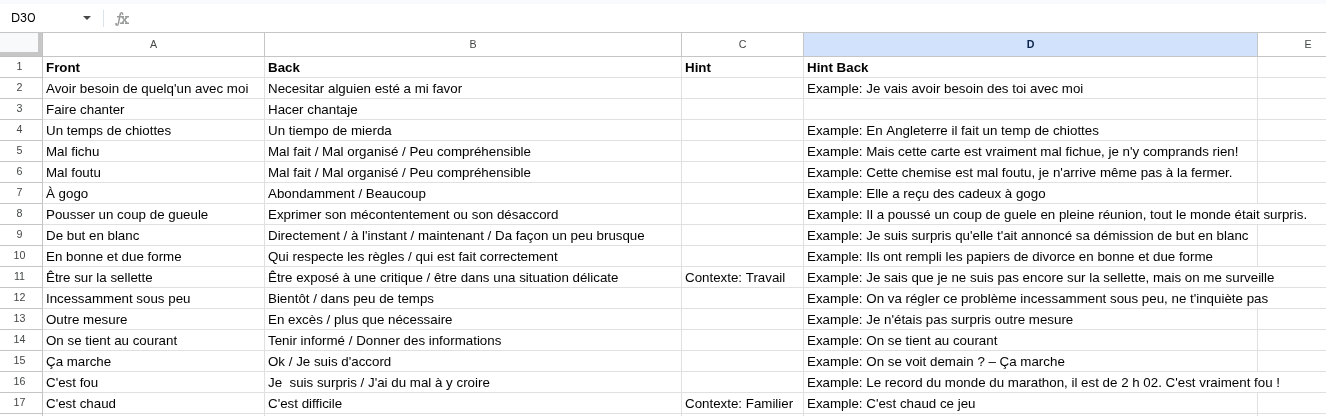
As described earlier, use the “up arrow” button to start importing the data. 
The process of creating a new deck and importing an Excel file is demonstrated in the following video: video