
Test Viewer: Flashcards
Learn how to use flashcards in Test Viewer.
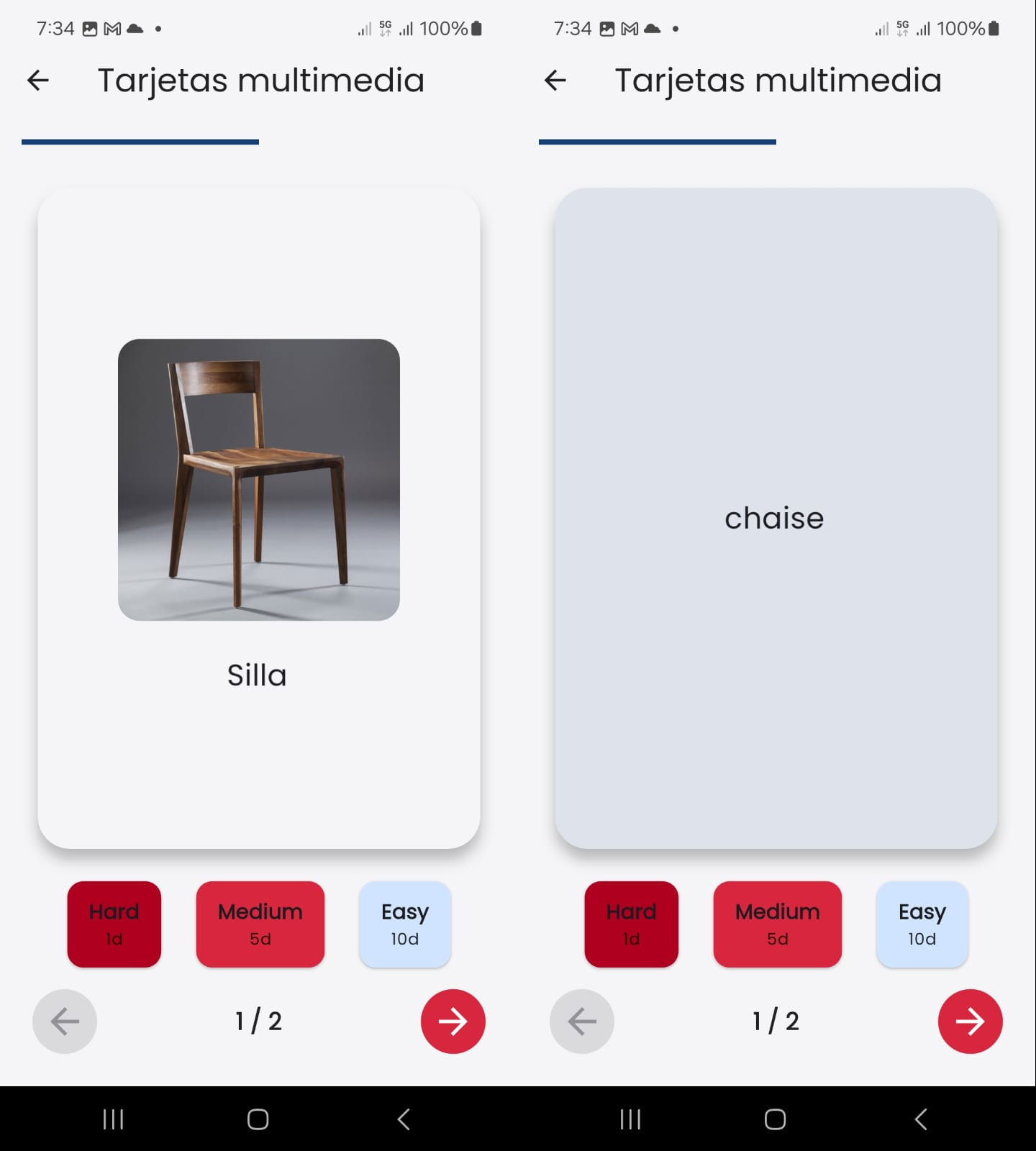
Flashcards allow revision using the Spaced Repetition System (SRS). The image above displays both the front and back of a card.
Upon viewing the front, the student should think of or say out loud the content on the back. Tapping the card flips it over to reveal the back so they can check if their recall was correct.
Pressing one of the buttons beneath the card activates spaced repetition (which is configurable). If the student knew the answer, they click Easy so that the card is not shown again until several days later. However, if they did not know the answer, they click Hard so that the card is shown again as soon as possible.
Flashcard Decks List
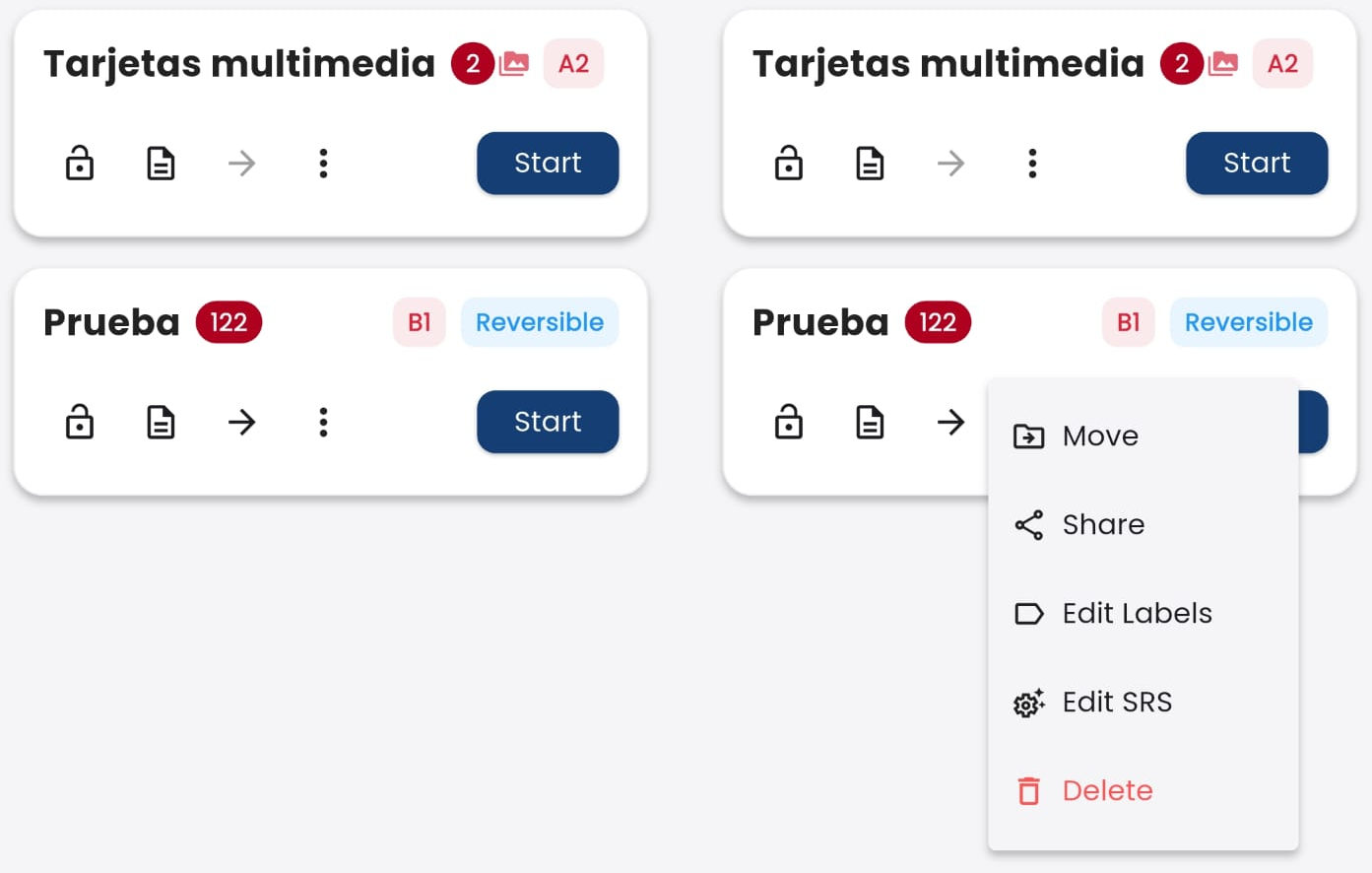 The image shows the deck list (there are two) in two views, the one on the right showing the expanded ”⋮” menu. Next to the deck name is the number of cards remaining to review. To the right, icons may indicate audiovisual content, CEFR level, and whether the deck is reversible. Available buttons include:
- 🔒: If the padlock is closed, the file is protected and can only be edited by someone who has the password. It can be unprotected by tapping the padlock.
- 📄: Tapping it displays a description of the flashcard deck, total number of cards, SRS configuration, version, etc.
- ➔ / ⇄: Only enabled if the deck is reversible, in which case it has three states:
- ➔: Initially shows the front of the card
- ←: Initially shows the back of the card
- ⇄: Alternates initially between showing the front or back
- ⋮: Opens a menu with the following options:
- Move: to move the file to a folder (the folder must have been created beforehand) (see folder system)
- 🔀 Share: the file can be shared (e.g., sent via email)
- 🏷️ Edit tags: to delete or add tags
- ⚙️ Edit SRS: change the spacing intervals of the cards
- 🗑️ Delete: deletes the file
Tag Editor
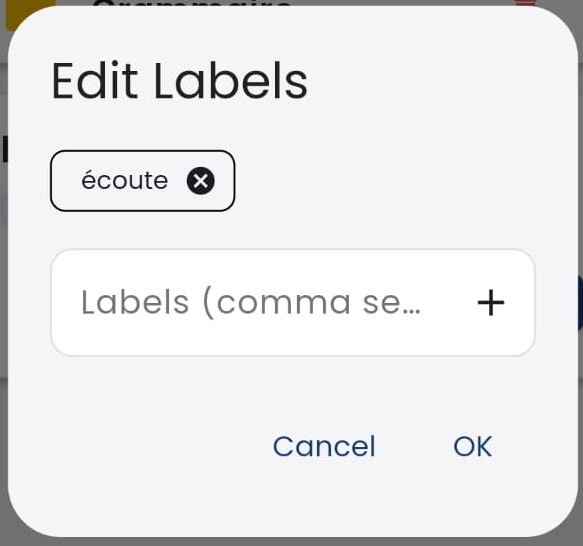 To add tags, type them in the text box and click the "+" button. Then click "Accept" to save changes or "Cancel" to discard them.
SRS Parameter Editor
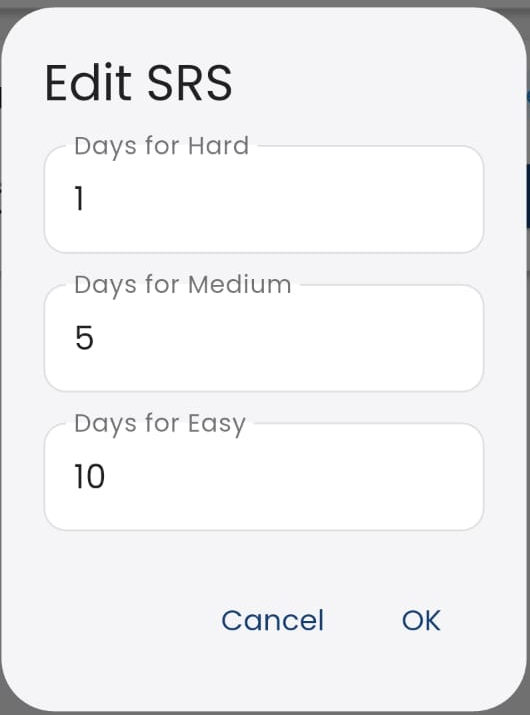 SRS parameters define how spaced repetition works for each deck. You can configure different review frequencies depending on your study goals. In general, for decks that you have already studied and mastered, it is recommended to set longer repetition intervals.
To learn how the spaced repetition system works in this application, visit this link.